Claude workspaces control access to API keys, usage data, and session information for a specific team or project. Adding a member to a workspace assigns them a role that determines what they can access there.
A person must already belong to your organization before you can add them to a workspace. Invite them to the org first, then add them to the workspace their project needs.
In this guide, we'll walk through two methods to add a member to a Claude workspace:
How to Add a Member to a Workspace in the Claude Console
You can add a member to a Claude workspace in the Anthropic Console. Use the Console to grant an existing organization member access to a specific workspace and assign their workspace role. You must be a Workspace Admin or Organization Admin to add members in the Anthropic Console.
Steps to Add a Member to a Workspace in the Claude Console
In the left sidebar, open Organization settings and click Workspaces.
In the Workspaces list, click the name of the workspace you want to add a member to. The detail page opens on its API keys tab.
In the workspace sidebar, expand Manage and click Members.
Click Add to Workspace in the top-right corner of the Members tab.
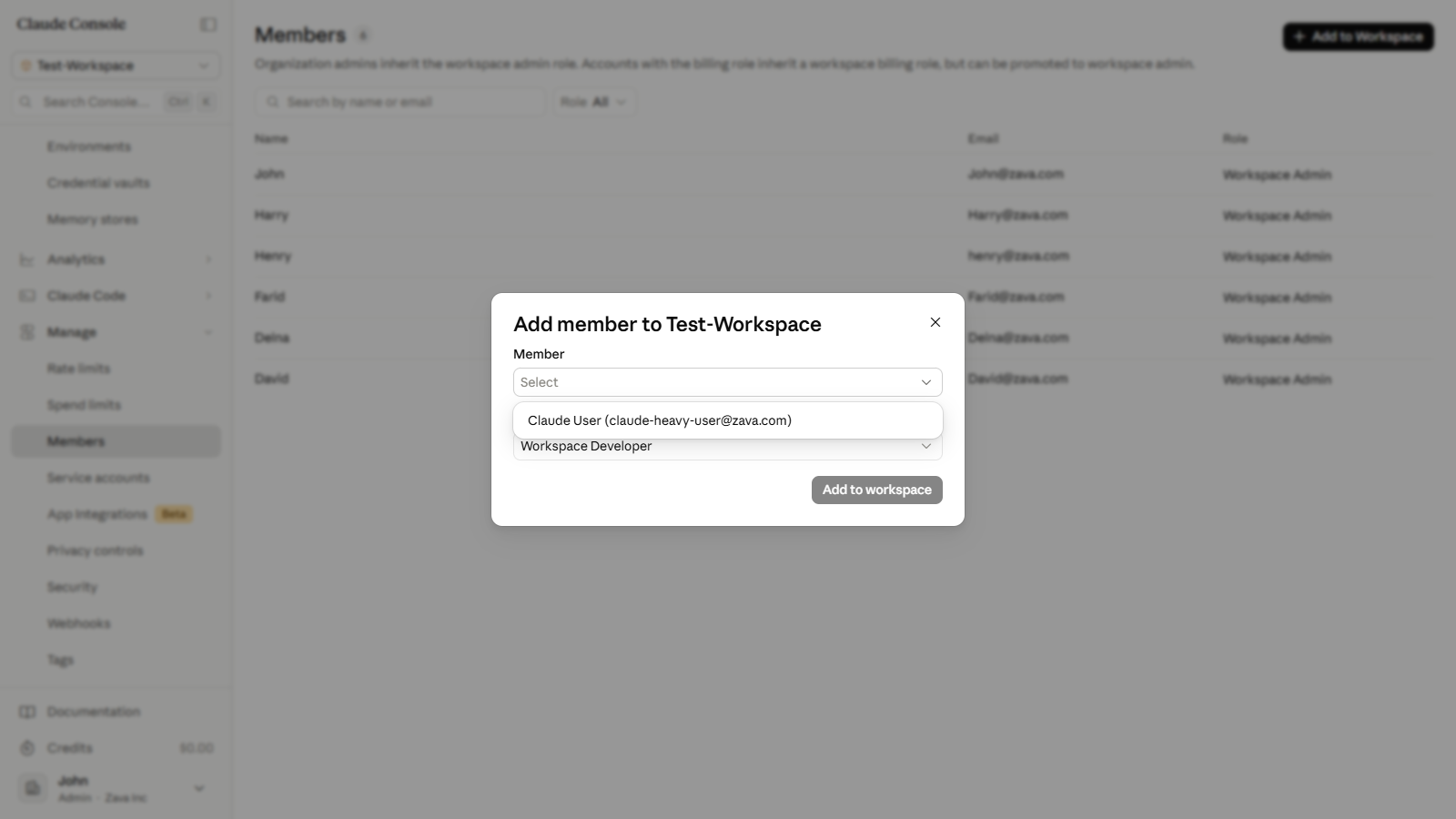
In the Add member to [workspace name] dialog, click the Member dropdown and select the organization member you want to add. The picker lists only members not yet in this workspace.
Click the Role dropdown and choose the appropriate workspace role:
Workspace User (view resources in the workspace)
Workspace Developer (manage API keys and webhook endpoints, view usage, and access session data)
Workspace Limited Developer (same as Developer, but session transcripts and memory stores are hidden in the Console)
Workspace Admin (all Developer capabilities, plus user management and running-session access)
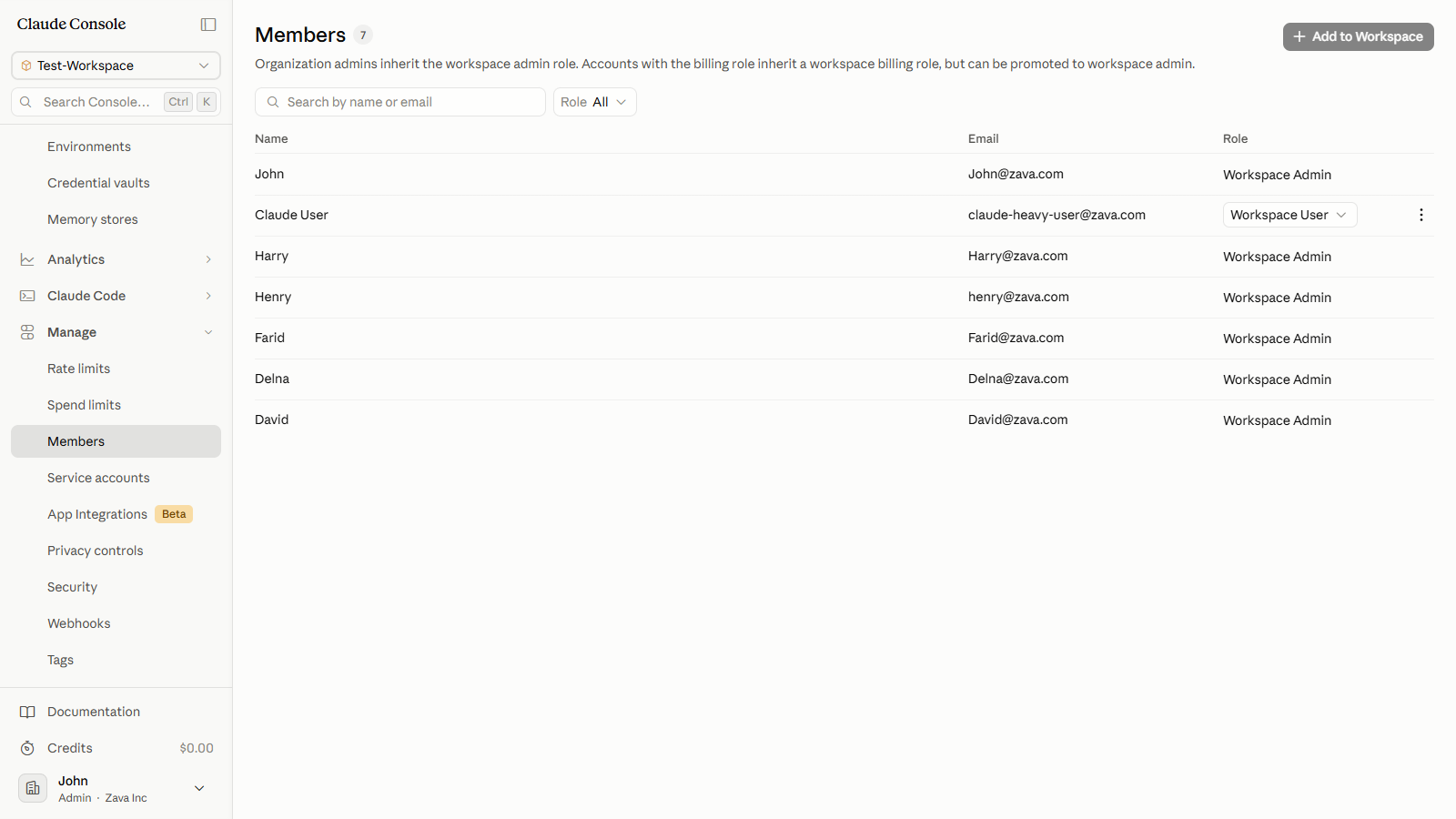
Click Add to workspace. The dialog closes and the member appears as a new row in the Members list with their assigned role.
Workspace Member Access Best Practices in the Claude Console
The Role dropdown defaults to Workspace Developer. Change it to Workspace User for members who only need to view workspace resources. Assign Developer or Admin only when the work requires API key management or session access.
If a person does not appear in the Member picker, they are not yet part of your organization. Go to Organization settings > Members and invite them first, then return to add them to the workspace.
Roles are per workspace. A member can hold a different role in each workspace. Grant broader access in development workspaces and keep production workspaces restricted to the minimum each role requires.
Organization Admins are automatically present in every workspace as inherited Workspace Admins. They appear on the Members tab but cannot be added or modified through this flow.
Add a Claude Workspace Member Using Admin365
You can add a Claude workspace member in Admin365 from a central management console. Use this when onboarding colleagues to a workspace. The member must already be in your organization for them to appear in the search.
Steps to Add a Workspace Member Using Admin365
Log in to the Admin365 portal.
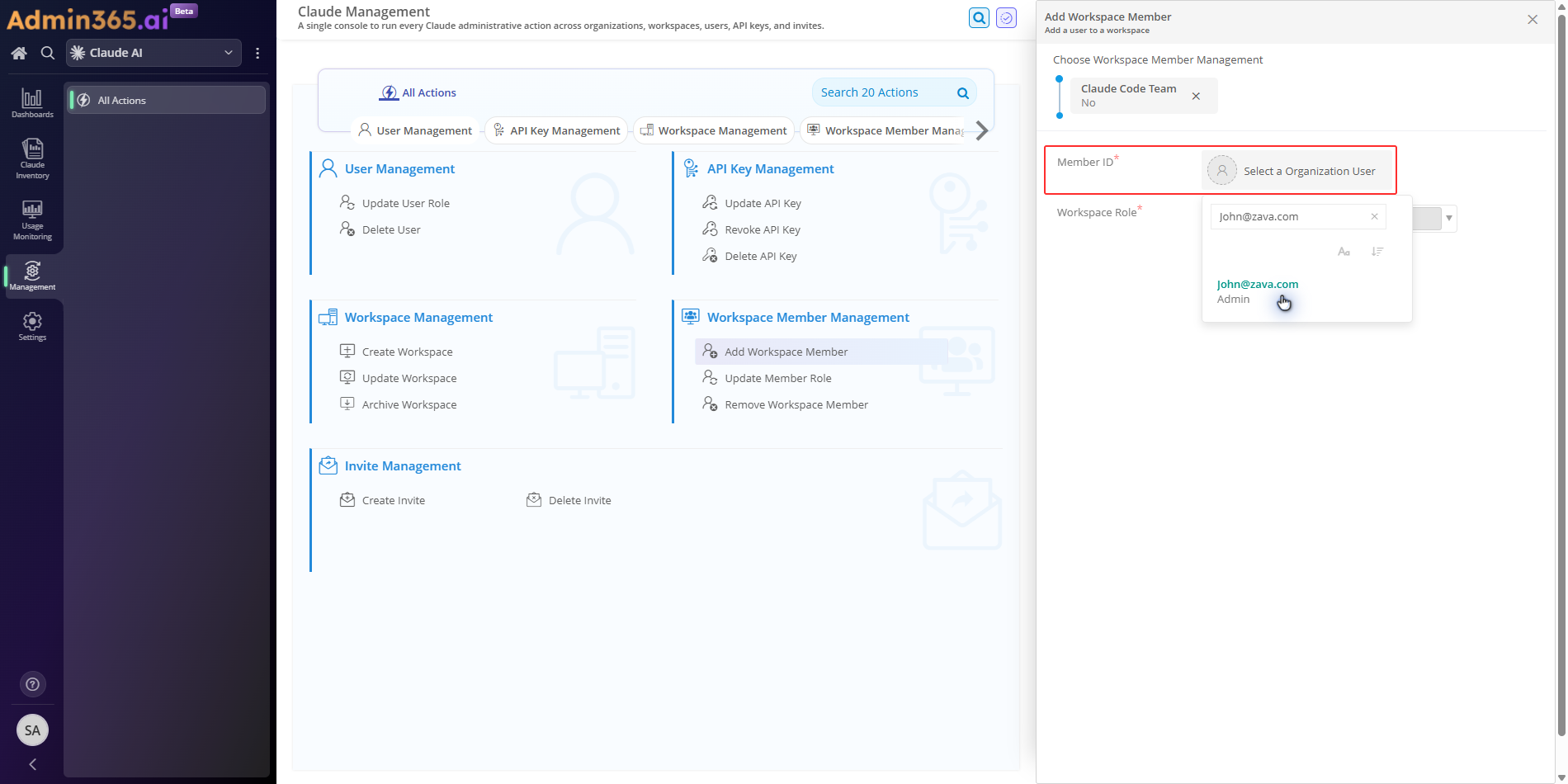
In the sidebar, go to Management > Workspace Member Management and click Add Workspace Member.
In the Member ID field, type the person's email address and select them from the results.
If the person doesn't appear, they haven't joined your organization yet. Invite them from your organization's Member settings first, then return to add them to the workspace.
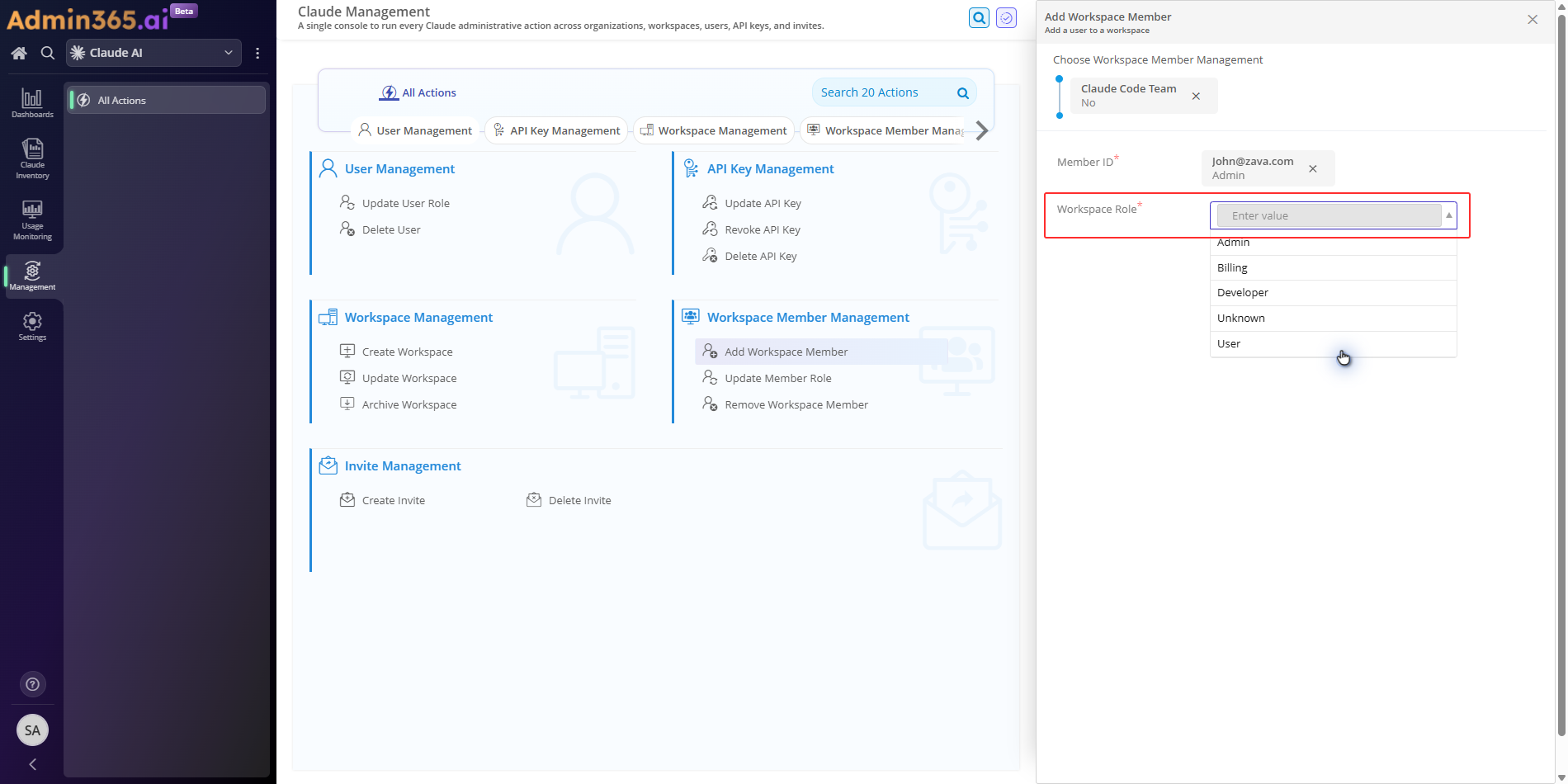
In the Workspace Role field, choose the role that fits their access level. Workspace User for viewing resources; Workspace Developer to create or manage API keys; Workspace Admin for full workspace control.
Click Execute.
Admin365 records the result in the execution log. If the member is already in the workspace, the log shows the error and an Edit & Retry option so you can correct the input without restarting.
Why Choose Admin365 to Manage Claude Workspace Members
In the Console, reaching the member-add flow takes several navigation steps. Open Workspaces, find the workspace, open the Members tab, then click Add to Workspace. Admin365 reaches the same action from the Management sidebar directly.
Admin365 records every attempt, capturing who ran it, when, and whether it succeeded. That gives you a durable audit trail for access reviews. The Console keeps no equivalent record of workspace member changes.
You can add several members to a workspace in a few clicks, instead of repeating the Console's one-at-a-time add flow for each person.
Admin365 Role Assignment Tip for Workspace Members
Match the role to the task. Workspace Developer already covers creating and managing API keys, so reserve Workspace Admin for people who manage the workspace itself. High-privilege access will indirectly affect the organization's security
Common Errors When Adding a Workspace Member in Claude Console
Adding a workspace member can fail at the API layer or when Admin365 submits the request on your behalf. Match the error text you see below, then follow the resolution.
User Already a Workspace Member Error in Admin365
Error:
The specified user is already a member of the Workspace.
What it means: The selected user already has access to the target workspace, so the API rejects the duplicate add.
Solution: Check whether the user is already a workspace member before adding them. If they are and you need to change their access, use Update Member Role instead of adding them again.
Permission Denied Error When Adding a Workspace Member
Error:
Your API key does not have permission to use the specified resource.
What it means: The acting admin or Admin365's API key lacks the Organization Admin or Workspace Admin role required to manage workspace members.
Solution: Have an Organization Admin grant the acting user (or Admin365's connection) Workspace Admin on the target workspace, then retry.
Member Not Found Error When Adding a Workspace Member
Error:
The requested resource could not be found.
What it means: The person is not an organization member yet, so the Console omits them from the Add-member picker and the API returns a not-found error.
Solution: Invite the person to the organization first via Organization settings > Members > Invite, then add them to the workspace.
Invalid or Expired API Key Error in Admin365
Error:
There's an issue with your API key.
What it means: The Admin API key that Admin365 uses to reach Claude is malformed, revoked, or expired, so the request is rejected before the member is added.
Solution: Regenerate the Admin API key in the Claude Console and update it in Admin365's connection settings, then retry.
Manage Claude Workspace Members at Scale with Admin365
Add, update, and audit workspace members across every Claude workspace from one management console.