Workspaces in the Claude Console group API keys, members, and spend controls under a shared name and color. A workspace may need a new name or color when a team restructures or a project changes scope. Renaming a workspace leaves the workspace ID and all existing API keys untouched, so your existing integrations keep working.
In this guide, we'll walk through two methods to update a Claude workspace:
You can update a workspace in the Claude Console by renaming it or changing its display color. Use the Console when you need to reflect team restructuring or project changes without touching the workspace's API keys.
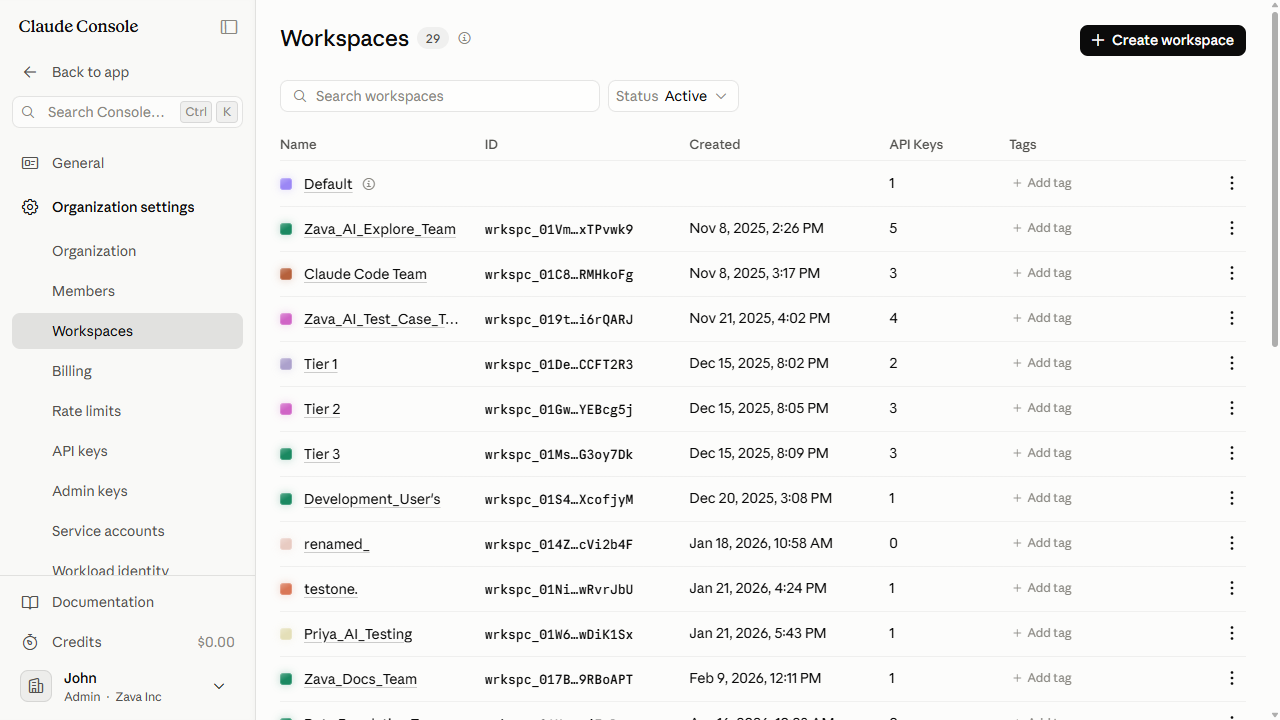
In the left sidebar, under Organization settings, click Workspaces.
Find the workspace you want to update. Click ⋯ (More actions) in its row, then click Edit details.
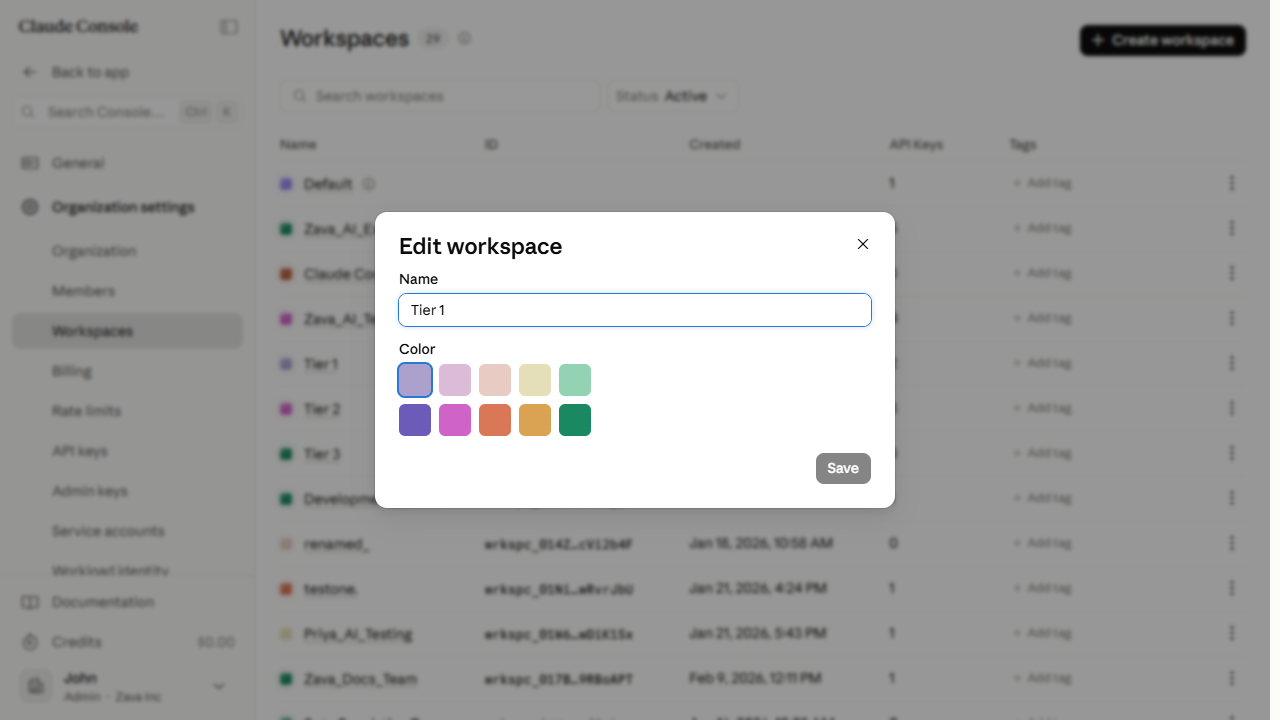
In the Name field, clear the current name and type the new one. To change the color, click one of the color tiles under Color. You can update one or both fields.
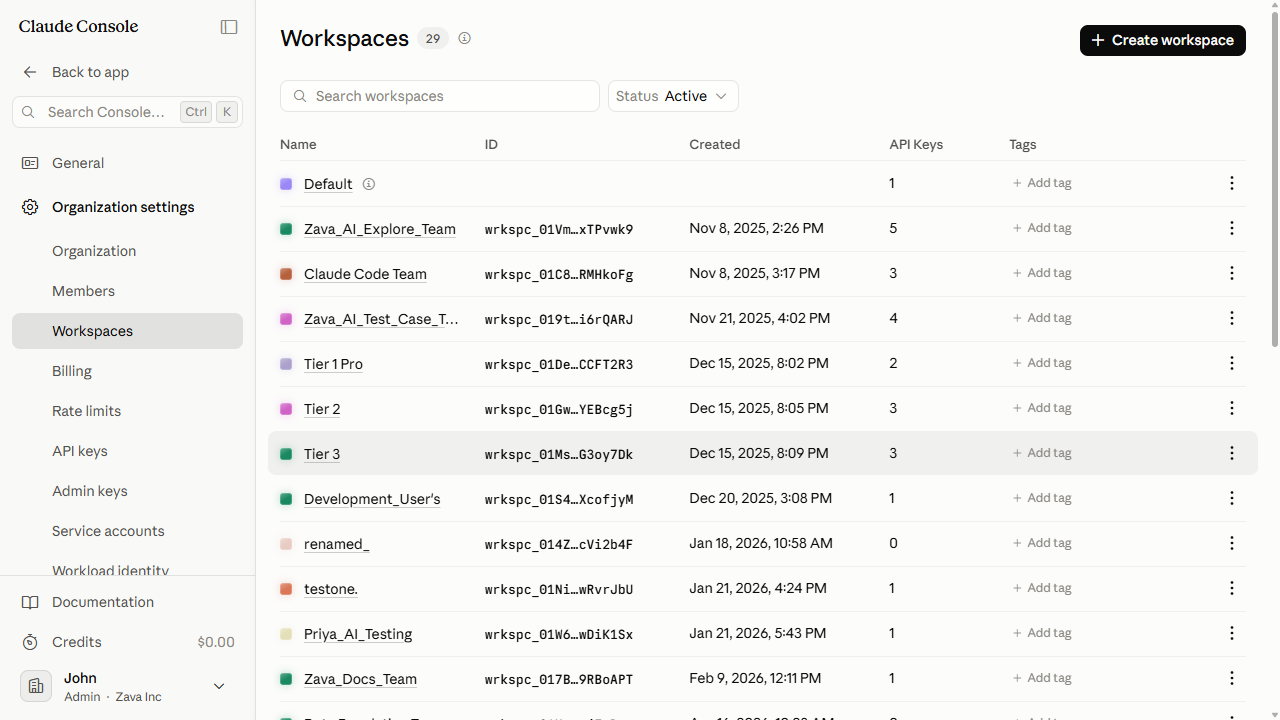
Click Save. The dialog closes and the workspace row refreshes with the updated name and color.
Best Practices for Updating a Workspace in the Claude Console
Renaming leaves the workspace ID and all API keys unchanged. Existing integrations keep working without reconfiguration.
Use consistent naming conventions such as team-project-environment so workspaces are identifiable at a glance across the organization.
Use distinct colors for different environments. A different color for production workspaces reduces the risk of editing the wrong one.
Update a Workspace Using Admin365
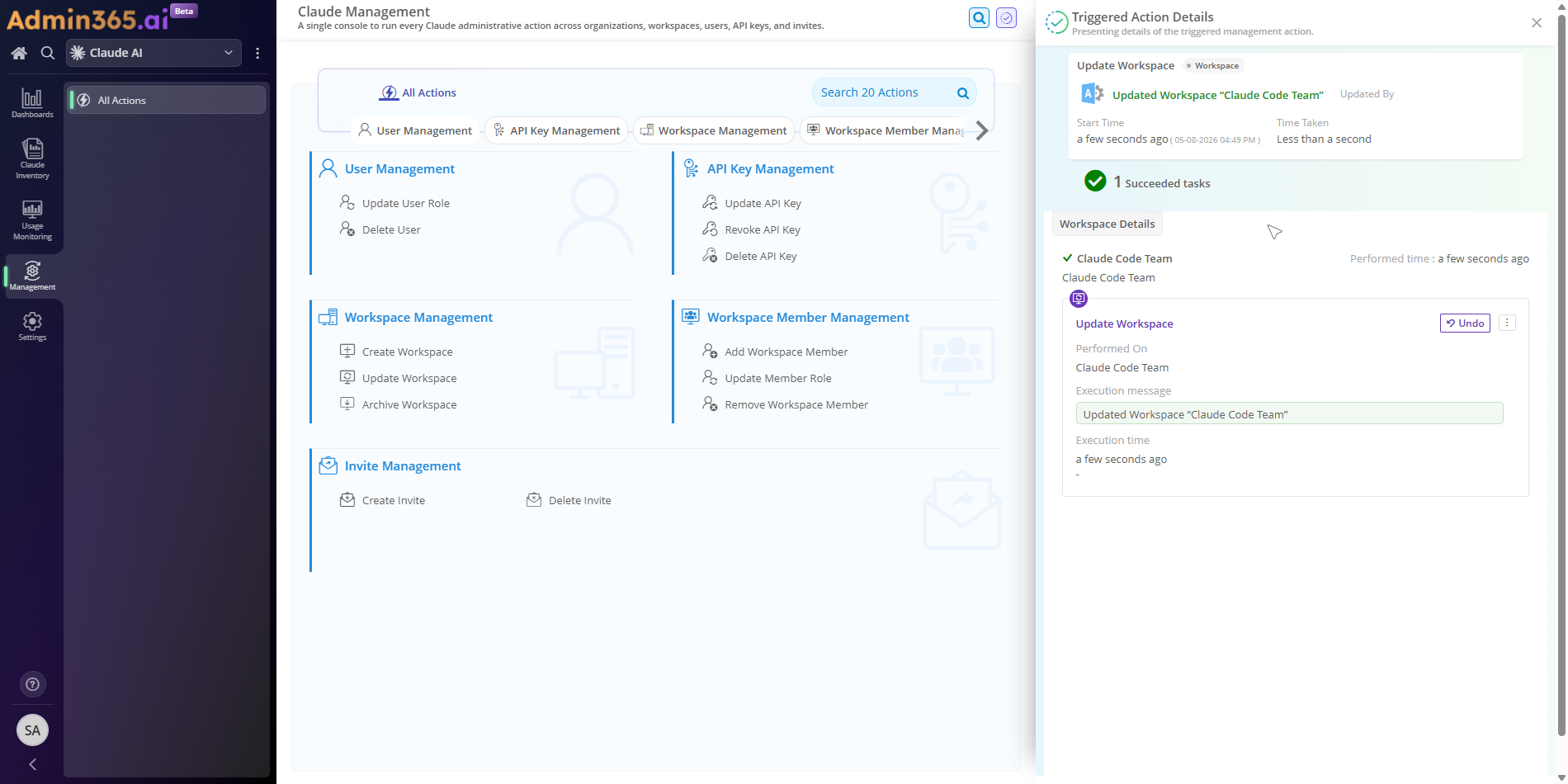
You can update a Claude workspace in Admin365 through a dedicated action. Use this when you're renaming workspaces across a team restructure or naming convention rollout and want a traceable, single-step path.
Steps to Update a Workspace Using Admin365
Log in to the Admin365 portal.
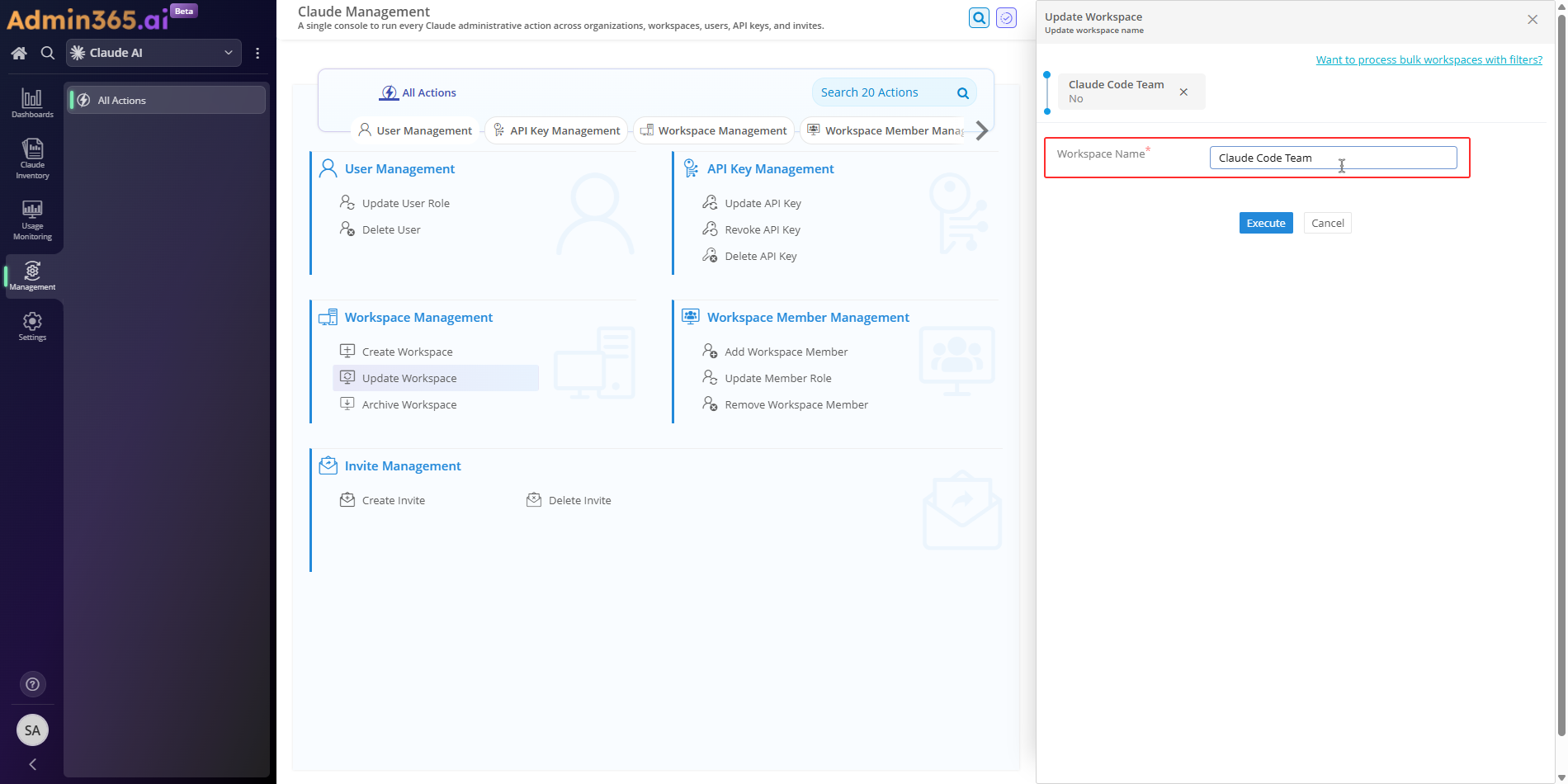
Click Update Workspace under Workspace Management.
Select the workspace you want to rename from the Select a Claude Workspace picker at the top of the form.
Enter the new name in the Workspace Name field — this updates the display name visible across the Console and Admin365 reports.
Click Execute.
Admin365 shows an Action Executed Correctly message confirming the rename.
Why Admin365 for Claude Workspace Management
Workspace renames in the Console are routed through a context menu buried in each workspace row. Admin365 handles this with one dedicated action, so the change is a simple step no matter how many workspaces you manage.
Rename workspaces in bulk from a single Workspace Management action, rather than editing each one individually in the Console.
Admin365 organizes Claude data into dedicated report collections, including separate Workspace and Workspaces report sections, so you can review renamed workspaces easily.
Admin365 Workspace Management Tip
Decide on a naming convention before you start renaming. A consistent format keeps workspaces easy to find and filter across the list of workspaces.
Common Errors When Updating a Workspace in the Claude Console
Workspace updates fail for a few predictable reasons. The usual causes are a spend limit above the organization cap, a role without edit rights, or the locked Default Workspace. Match the error text you see to the entry below, then follow the resolution.
Workspace Spend Limit Exceeds the Organization's Limit
Error:
Cannot exceed the organization's limit
What it means: The monthly amount entered for the workspace was higher than the organization's own monthly spend limit. That organization limit is the hard ceiling a workspace can never exceed.
Solution: Open the workspace's Spend limits tab, set a monthly amount below the organization's limit, then save.
Only Organization Admins Can Update a Workspace
Error:
Only organization admins can create and manage workspaces.
What it means: The signed-in account holds an organization User, Developer, or Billing role instead of the Organization Admin role that editing a workspace requires.
Solution: Have an Organization Admin make the change, or ask an Admin to promote your account to the Admin role under Settings > Members, then retry.
The Default Workspace Cannot Be Renamed or Edited
Error:
The Default Workspace cannot be renamed, archived, or deleted.
What it means: The workspace being edited is the organization's Default Workspace, which Claude locks against renaming and detail changes.
Solution: Create or switch to a non-default workspace under Settings > Workspaces and apply the name or limit change there instead.
Manage Claude Workspaces at Scale with Admin365
Rename and govern Claude workspaces from a single, traceable action.