
Docs / Claude guides

How to Change a Workspace Member's Role in Claude

You change a workspace member's role in Claude when their access needs shift. Roles range from view-only access (Workspace User) to full member and session management (Workspace Admin). For example, a contractor finishing a project moves to Workspace User, while a developer taking on oversight needs Workspace Admin. Role changes take effect immediately and apply per workspace.

In this guide, we'll walk through two methods to change a workspace member's role in Claude:

  • Change a workspace member's role in the Claude Console
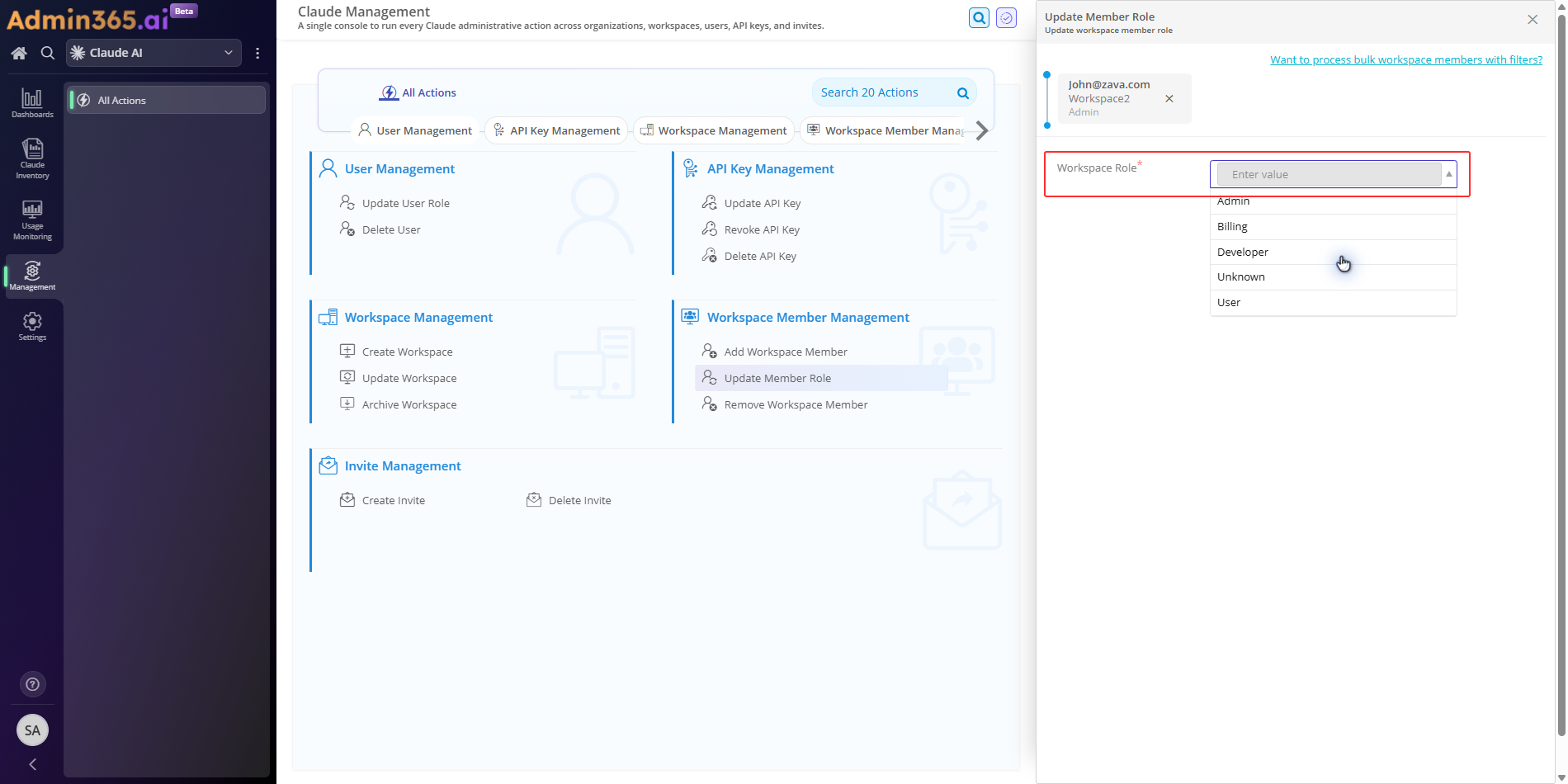
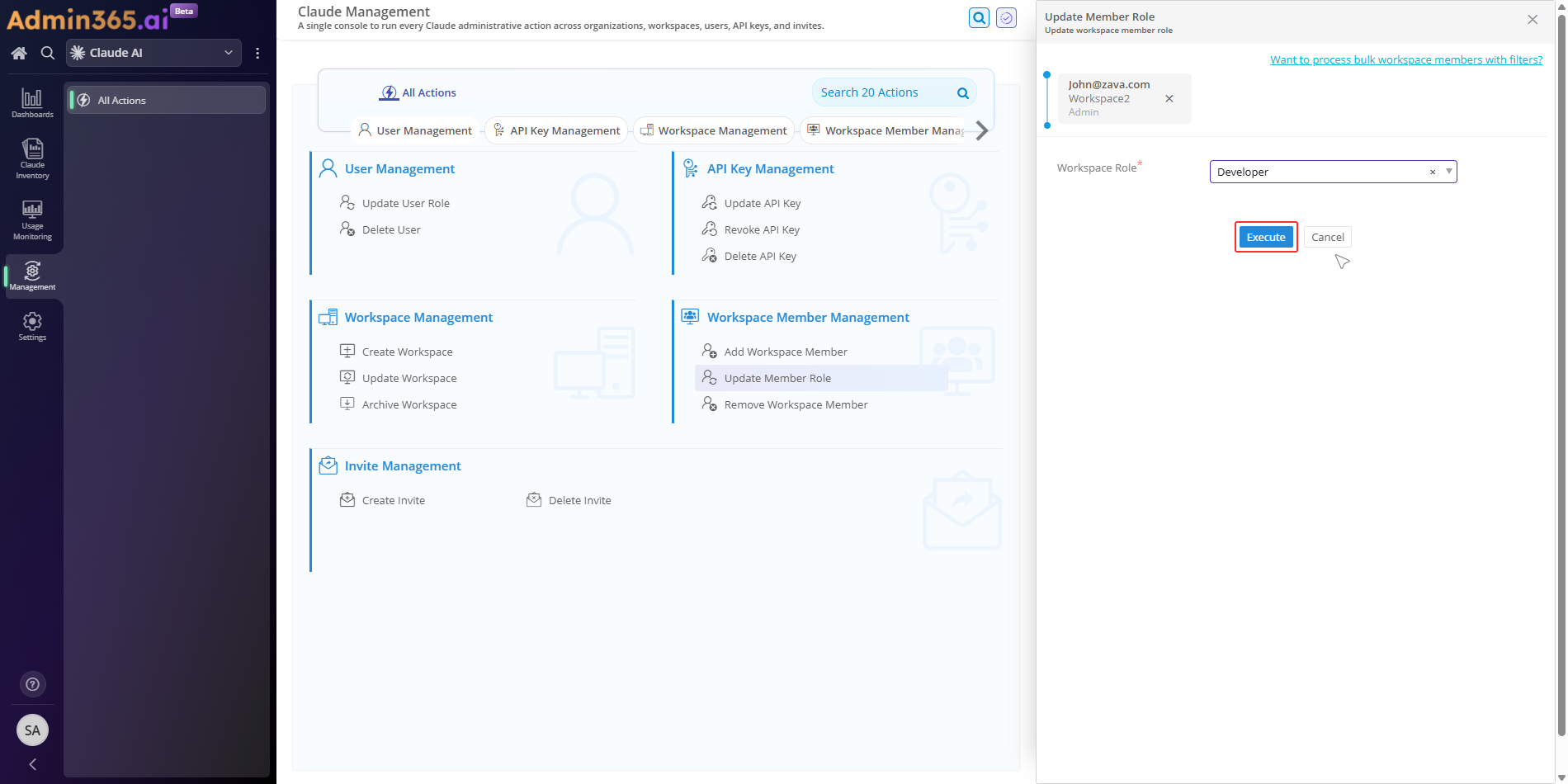
  • Update a workspace member's role using Admin365

Choose a method

Change a Workspace Member's Role in the Claude Console

You can change a workspace member's role in the Claude Console. Use the Console when you need to adjust one member's access level on a specific workspace. You must be a Workspace Admin or Organization Admin to modify the member's role.

Steps to Change a Workspace Member's Role in the Claude Console

  1. Sign in to the Anthropic Console.

  2. Select the target workspace from the workspace switcher at the top of the sidebar.

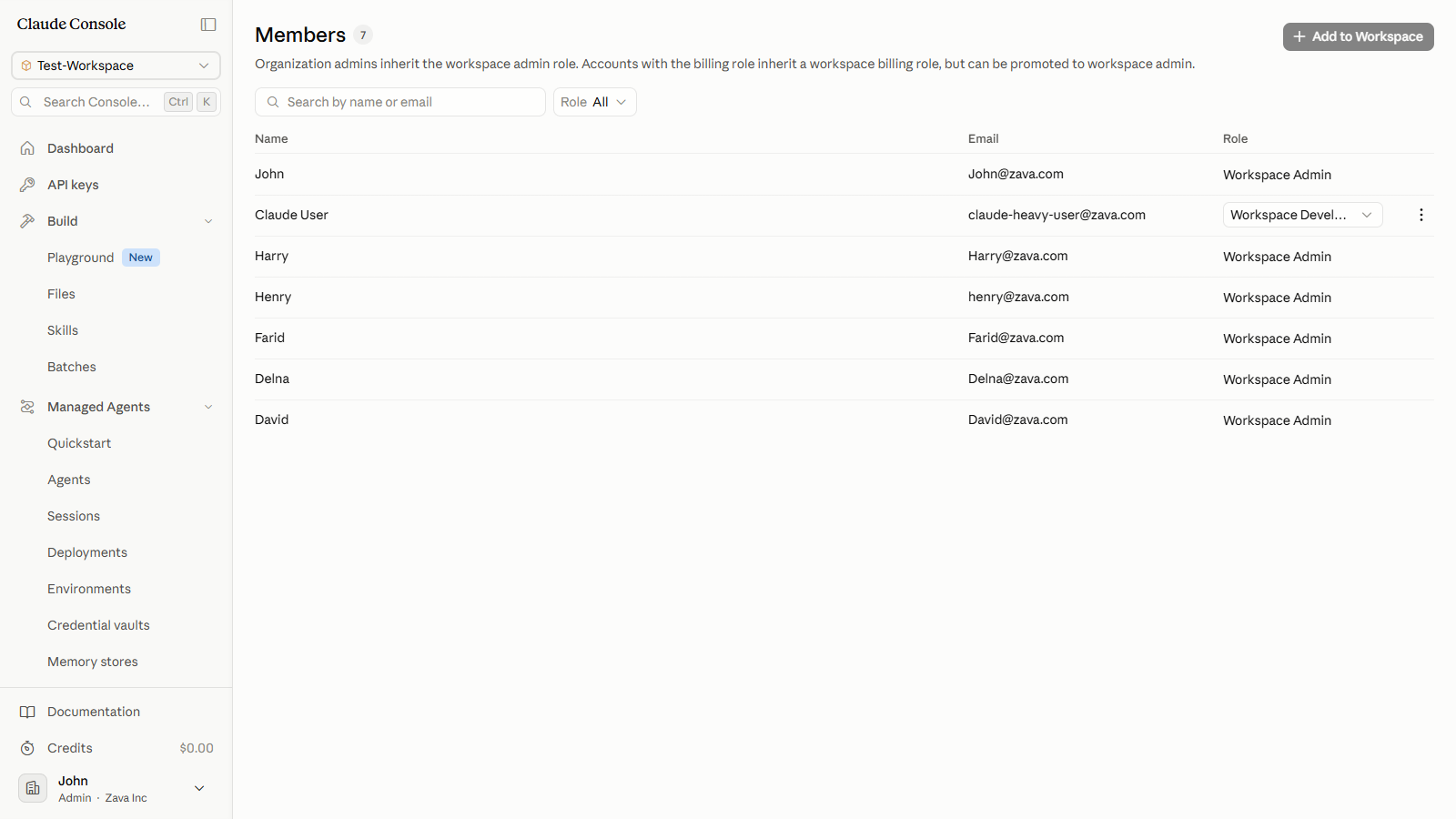
  3. In the sidebar, expand Manage and click Members. The Members page opens, listing each member's name, email address, and current role.

Workspace Members list showing each member's name, email, and role in the Role column
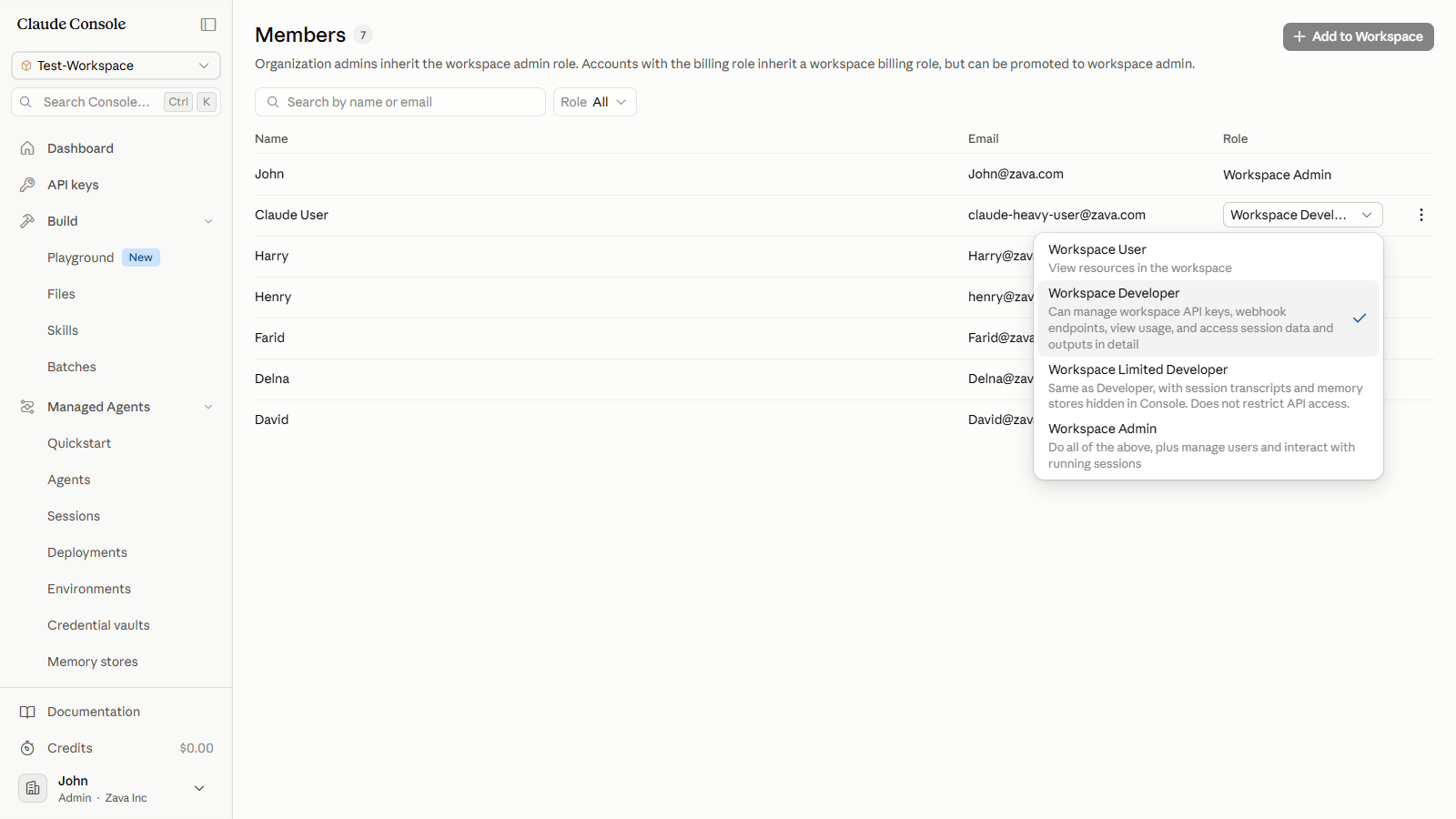
  1. Locate the member whose role you want to change. In that member's Role column, click the role dropdown (it shows the current role). The dropdown opens with four options, with the active role check-marked:

    • Workspace User — View resources in the workspace.
    • Workspace Developer — Manage workspace API keys and webhook endpoints, view usage, and access session data and outputs in detail.
    • Workspace Limited Developer — Same as Developer, with session transcripts and memory stores hidden in the Console. Does not restrict API access.
    • Workspace Admin — All permissions above, plus manage members and interact with running sessions.

    Only explicitly-added members show an editable dropdown. Organization Admins who inherit access display a plain-text Workspace Admin label with no dropdown; their workspace role cannot be changed here.

Role dropdown open on the member's row, showing the four workspace roles with the current role check-marked
  1. Click the role you want to assign. The change applies immediately. The dropdown closes and the Role column updates in place.

Workspace Member Role Best Practices in the Claude Console

  • Assign the least-privilege role each member actually needs. Use Workspace User for view-only access, Workspace Developer for API key and usage management, and Workspace Admin only for members who manage other members or active sessions.
  • Confirm your permissions before opening the Members page. The role dropdown is only visible to Workspace Admins and Organization Admins. If the dropdown is missing on a member's row, you do not hold the required role on this workspace.
  • Scope the change to the right workspace. A member's role is per-workspace. The update only affects the workspace you have open. If the member needs different access elsewhere, repeat the change in each workspace separately.
  • Review workspace role assignments periodically to avoid privilege creep. Members who move between teams often keep their original roles. A regular review of the Members page keeps access aligned with current responsibilities.

Common Errors When Updating a Member Role in Claude Console

This section covers the errors you may encounter when updating a workspace member's role through the Claude Console or Admin365. Match the error text you see below, then follow the resolution to get back on track.

Permission Denied (403) When Changing a Workspace Member's Role

Error:

Your API key does not have permission to use the specified resource. Check your organization's access and workspace settings in the Claude Console.

What it means: The signed-in account or API key is not a Workspace Admin or Organization Admin on the target workspace, so it cannot change member roles.

Solution: Have a Workspace Admin or Organization Admin make the change, or connect an Admin API key scoped to that workspace, then retry.

Authentication Error (401) From an Invalid or Expired API Key

Error:

There's an issue with your API key (for example, it's malformed, revoked, or expired).

What it means: The Admin API key used to update the workspace member is malformed, revoked, or expired.

Solution: Generate a fresh Admin API key in the Claude Console and reconnect it before retrying the role change.

Not Found (404) When Updating a Workspace Member via the API

Error:

The requested resource could not be found.

What it means: The workspace ID or user ID in the update request is wrong, or the member no longer belongs to that workspace.

Solution: Confirm the workspace and user IDs against the current workspace Members list, then resend the update.

Invalid Request (400) From an Unrecognized Workspace Role Value

Error:

There was an issue with the format or content of your request.

What it means: The update request sent a workspace_role value outside the accepted set (workspace_admin, workspace_billing, workspace_developer, workspace_restricted_developer, workspace_user).

Solution: Send one of the five accepted workspace_role values exactly as documented, then retry the request.


Manage Claude Workspace Member Roles at Scale with Admin365

Apply workspace role changes for every workspace from one central management screen.

Download Admin365