Workspaces in the Claude Console isolate API keys, members, and usage by team or project. When a project ends or a team restructures, archiving the workspace deactivates all its API keys immediately. The workspace will be removed from your active list, but its past usage data stays available for reporting. Archiving is permanent. The Console has no restore option, so archive a workspace only when you no longer need it.
In this guide, we'll walk through two methods to archive a Claude workspace:
You can archive a workspace in the Anthropic Console. Use the Console when you need to retire a workspace and remove it, along with all its associated resources, from your organization's active list. You must be an organization Admin to archive a workspace in the Anthropic Console.
Steps to Archive a Workspace in the Claude Console
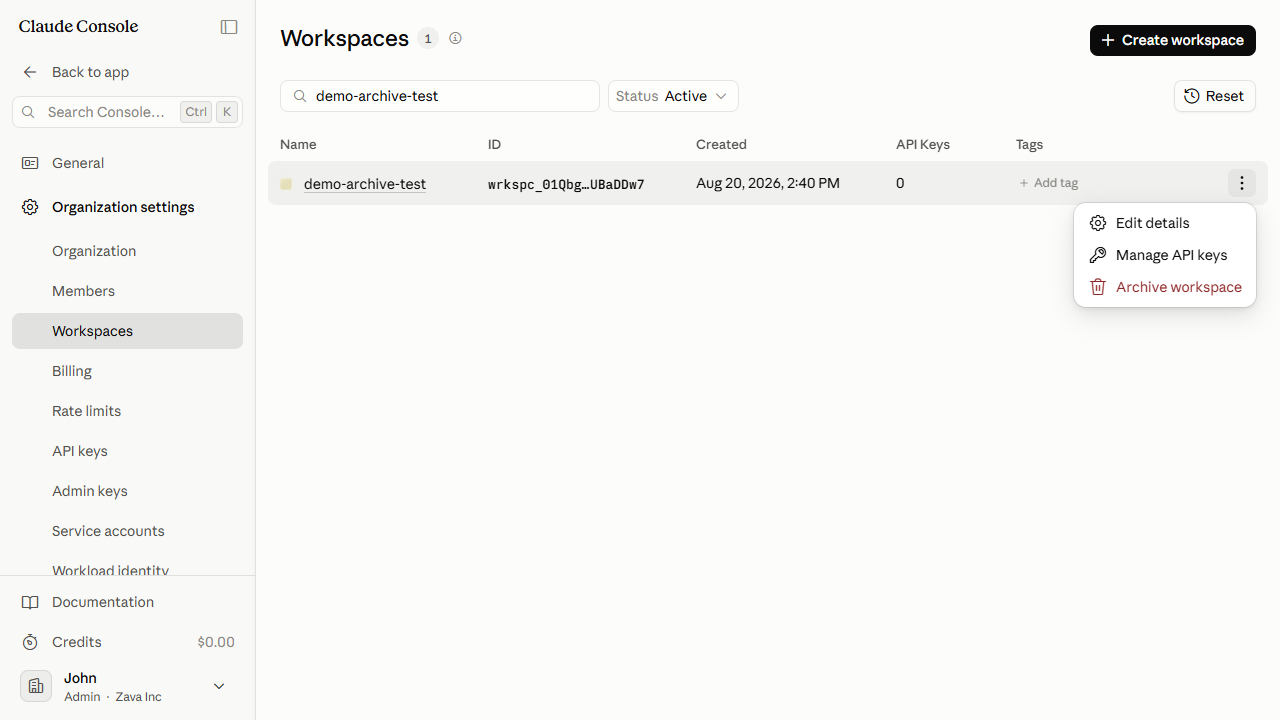
In the left sidebar, open Organization settings and click Workspaces.
In the Search workspaces box, type the workspace name to filter the list to your target.
In the target workspace's row, click the ⋯ (More actions) button at the right end of the row.
Click Archive workspace. The option appears in red to signal a destructive action.
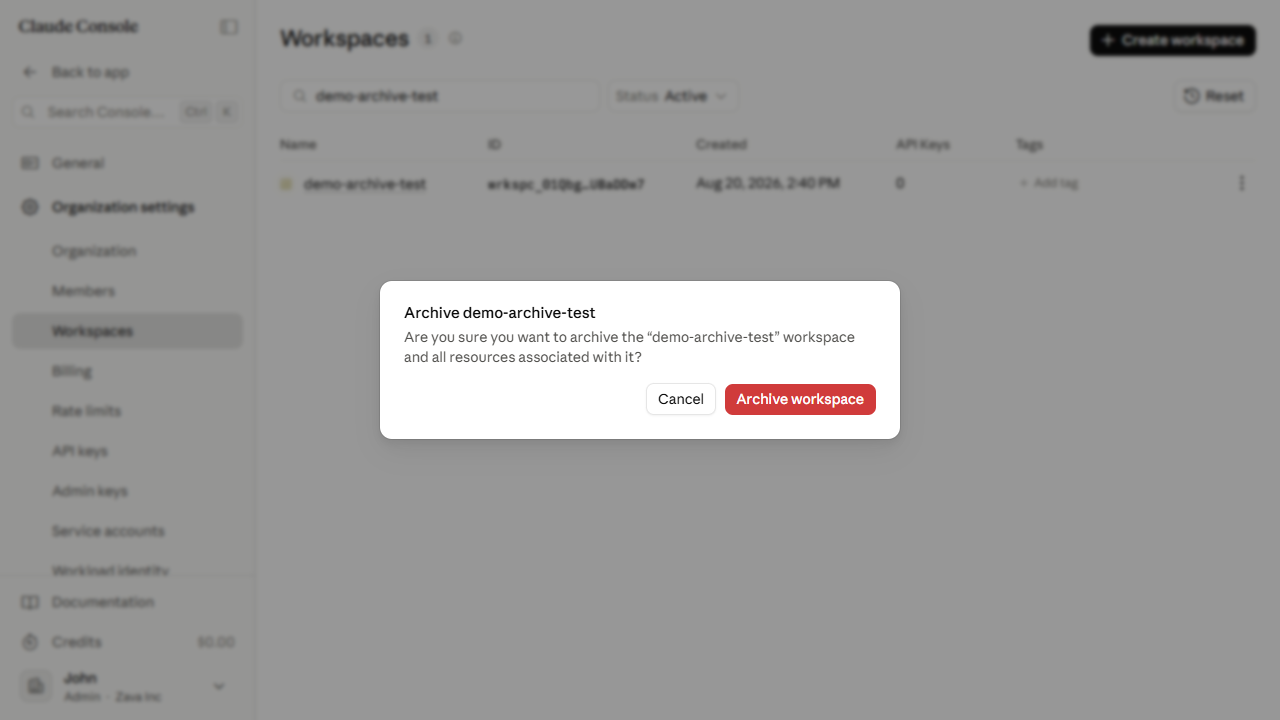
In the Archive {workspace name} dialog, confirm the name matches your target workspace. Click the red Archive workspace button to proceed, or Cancel to back out.
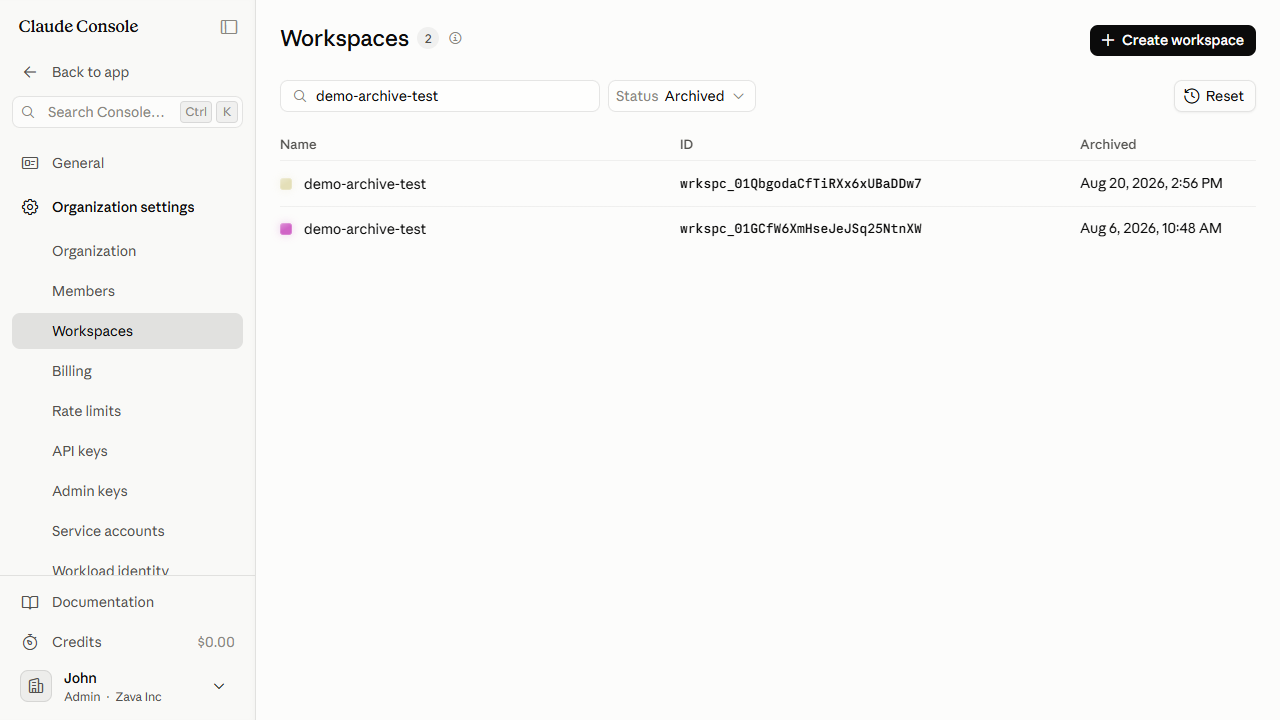
On the Workspaces page, switch the Status filter from Active to Archived. Your workspace appears in the Archived list with the date it was archived.
Best Practices for Archiving a Workspace in the Claude Console
Verify the workspace name in the confirmation dialog before you click Archive workspace. The Console has no restore option, so confirming the wrong workspace cannot be undone from the UI.
Check which resources depend on the workspace before you archive it. API keys, agents, and other assets tied to the workspace are removed from the active list along with it. Rotate or disable any keys that active integrations still rely on before you proceed.
Inform the workspace's members before you archive. Access to all workspace resources is removed immediately when you confirm.
How to Archive a Claude Workspace Using Admin365
You can archive a Claude workspace in Admin365 from the dedicated Workspace Management menu. Use this when you need to retire a workspace that's no longer in use. The workspace and all its API keys will also be deactivated immediately, and there is no undo option.
Steps to Archive a Claude Workspace Using Admin365
Log in to the Admin365 portal.
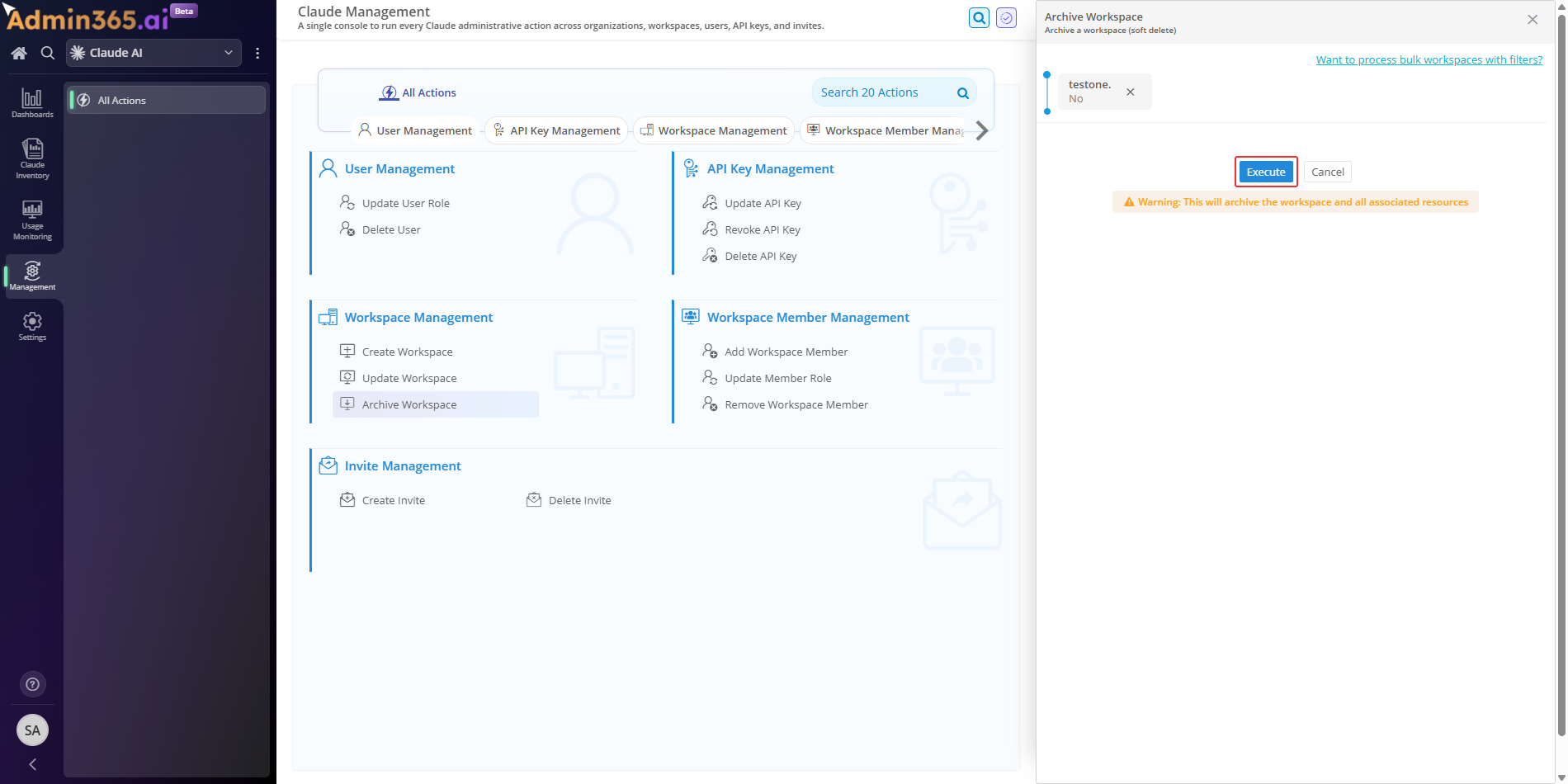
Go to Management > Workspace Management > Archive Workspace.
Specify the workspace to archive. Enter the workspace name or ID in the field provided. Double-check the name. This action cannot be reversed from the Console once it runs.
Click Execute to archive the workspace.
The workspace is archived the moment you click Execute.
Why Admin365 for Claude Workspace Management
In the Console, archive lives in each workspace row's ellipsis menu. You find the right row, click ⋯, then confirm a dialog with no warning about permanence. For teams managing many workspaces, that path invites mistakes. Admin365 replaces that row-hunt with a dedicated Archive Workspace action where you name the target workspace directly.
Archive workspaces in bulk from one place across every organization, instead of opening each workspace's row menu one at a time in the Console.
Every archive runs through Admin365, so you keep an audit record of which workspace was archived and when. The Console's row-level confirm dialog leaves no such trail.
Admin365 Tip: Verify a Workspace Is Idle Before Archiving
Confirm the workspace has no active API keys or service accounts before you click Execute. Any integrations using those keys lose access the moment the archive completes.
Common Errors When Archiving a Workspace in the Claude Console
Archiving a workspace in the Claude Console is irreversible: it immediately revokes every API key in the workspace and cannot be undone from the Console. Match the error text you're seeing to an entry below, then follow the resolution.
Workspace Not Found After Archiving in the Claude Console
Error:
Workspace not found — You may not have access to this workspace, or it may belong to a different organization.
What it means: The workspace was archived and the Console has no restore control, so opening the archived workspace's settings URL no longer resolves.
Solution: View the archived workspace by setting the Status filter to Archived on the Workspaces list. Archiving cannot be undone, so the Console has no unarchive button. Contact Anthropic support if you archived a workspace you still need.
Revoked API Keys Cause 401 Errors After Archiving a Workspace
Error:
401 authentication_error: There's an issue with your API key (for example, it's malformed, revoked, or expired).
What it means: Archiving a workspace immediately revokes every API key in it, so applications still calling the API with those keys are rejected.
Solution: Before archiving, verify no application still uses the workspace's API keys, because archiving revokes them permanently and cannot be undone.
Default Workspace Has No Archive Option in the Console
Error:
Every organization has a Default Workspace that cannot be renamed, archived, or deleted.
What it means: The organization's Default Workspace is protected, so the Console never shows an Archive option in its actions menu.
Solution: Create a regular non-default workspace for the resources you want to retire and archive that one instead, because the Default Workspace can never be archived.
Permission Error When Archiving Without an Admin Role
Error:
403 permission_error: Your API key does not have permission to use the specified resource.
What it means: Only organization admins can manage workspaces, so a user or developer role cannot archive one.
Solution: Ask an organization admin to run the archive, or have your organization role upgraded to admin before you retry.
Claude Code Sign-In Fails After Archiving Its Workspace
Reported error:
API Error: 403 {"error":{"type":"forbidden","message":"Request not allowed"}}
What it means: Archiving the Claude Code workspace disables Claude Code sign-in through Console billing. The whole organization loses access, so members can no longer authenticate through Claude Code.
Solution: Never archive the Claude Code workspace. If it was already archived, contact Anthropic support, since the Console offers no way to reverse it.
Manage Claude Workspaces from One Place with Admin365
Archive and manage Claude workspaces across every organization without switching consoles.