
Docs / Claude guides

How to Remove a Member from a Claude Workspace

Membership in a Claude workspace controls who can use that workspace's API keys, spend limits, and rate limits. Removing a member from a workspace ends their API key access there without changing their organization account or other workspace memberships. A developer who moves teams or a contractor finishing their current work no longer needs access to that workspace.

In this guide, we'll walk through two methods to remove a member from a Claude workspace:

  • Remove a member from a workspace in the Claude Console
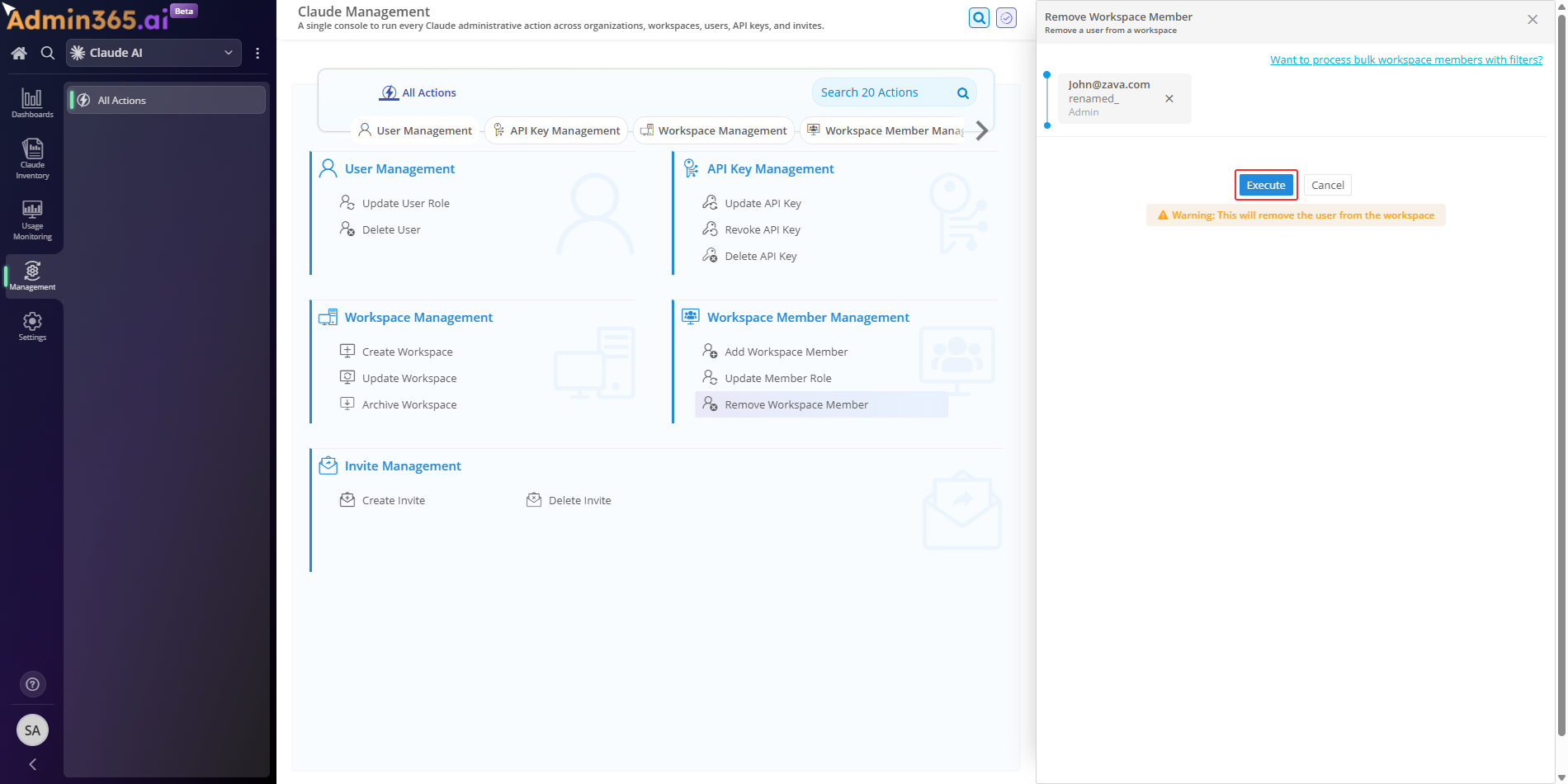
  • Remove a workspace member using Admin365

Choose a method

Remove a Member from a Workspace in the Claude Console

You can remove a member from a workspace in the Claude Console. Use the Console to remove a specific member's access to a single workspace. The member keeps their organization account and any other workspace memberships. You must be a workspace Admin or organization Admin to remove workspace members in the Claude Console.

Steps to Remove a Member from a Workspace in the Claude Console

  1. Sign in to the Anthropic Console.

  2. Go to Settings > Workspaces and open the workspace you want to edit.

  3. In the workspace's left sidebar, under Manage, click Members.

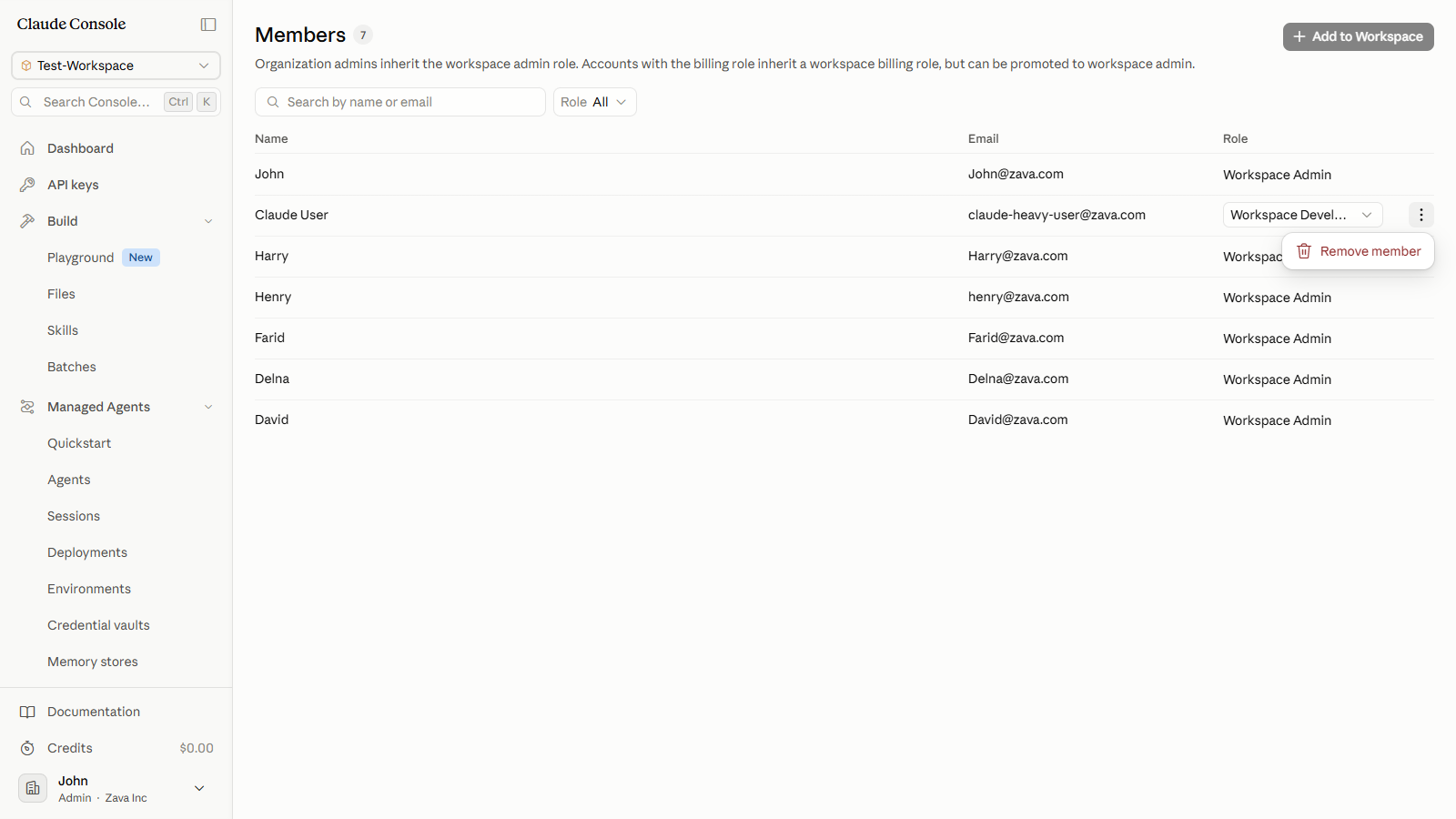
  4. Find the member in the list. At the end of their row, click ⋮ More actions.

  5. In the menu that appears, click Remove member.

The workspace Members list with the More actions menu open, showing the Remove member option
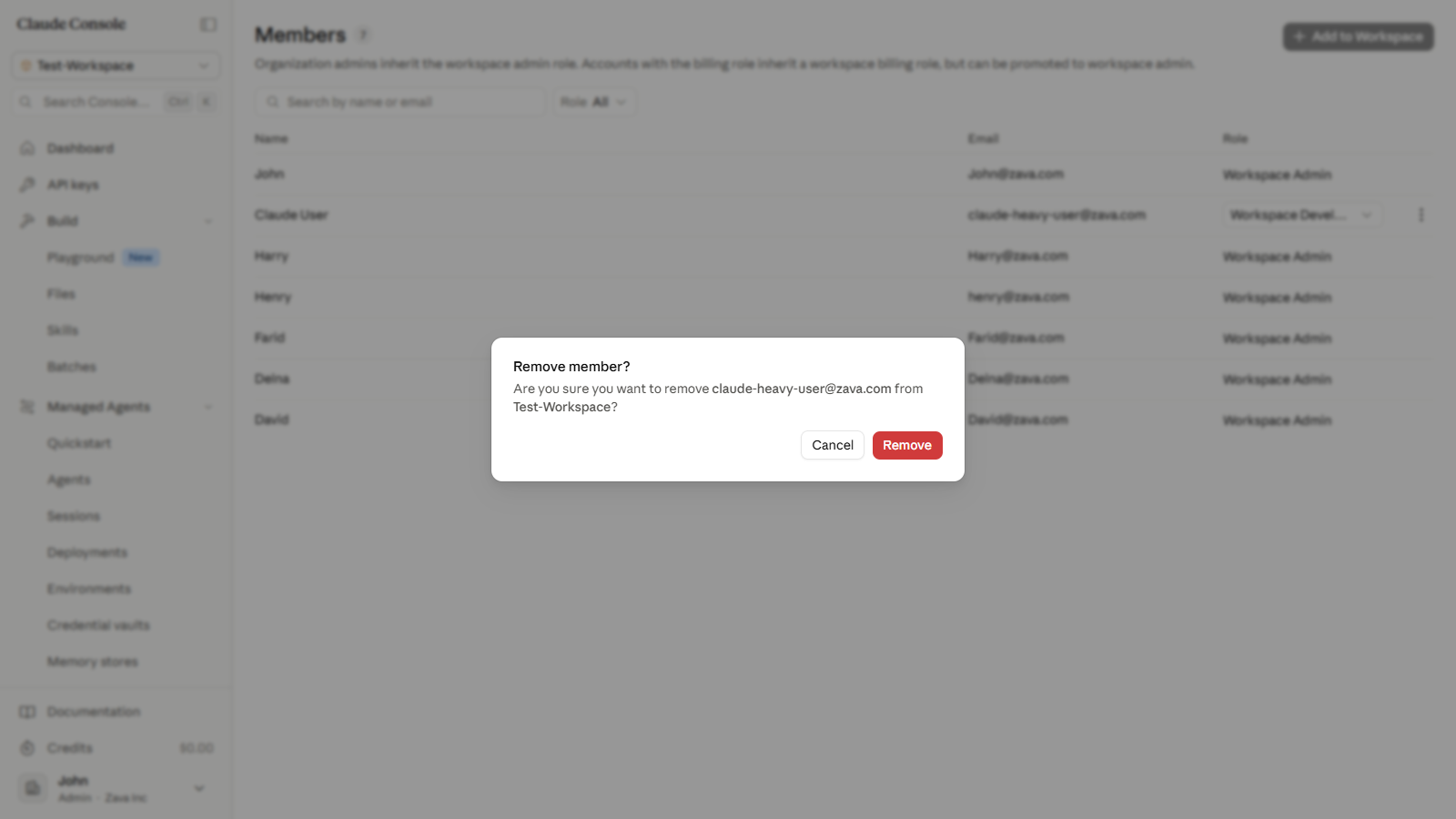
  1. A Remove member? dialog opens showing the member's email address. Confirm the email matches the member you intend to remove.

  2. Click Remove.

The Remove member confirmation dialog showing the member's email address
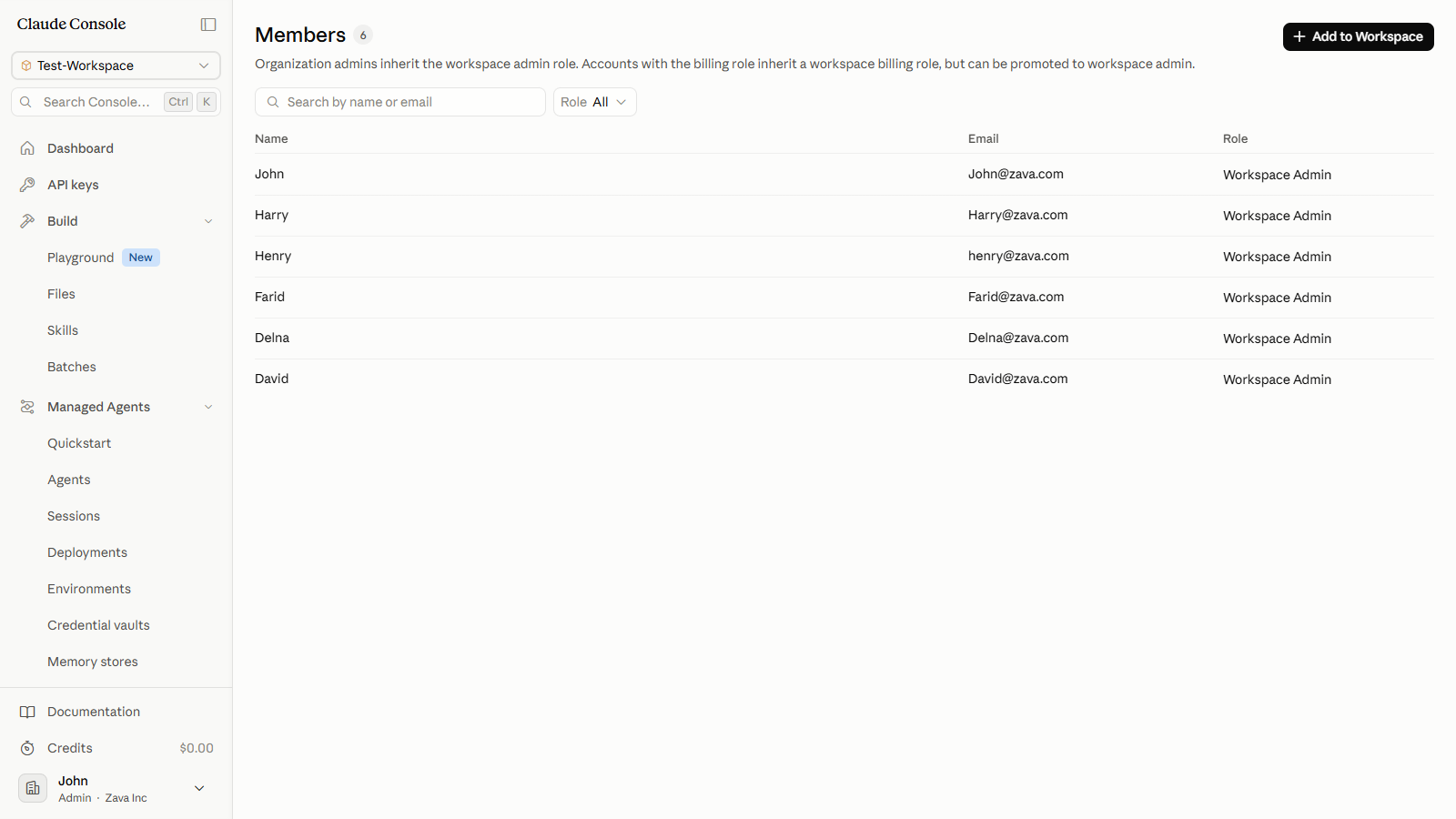
  1. The dialog closes. A brief "Member removed from [Workspace]" notification appears.

The workspace Members list after removal, with the member absent and the count reduced

Workspace Member Removal Best Practices in the Claude Console

  • Check the member's organization role first. Organization Admins and Billing members have automatic access to every workspace, so their rows show no ⋮ More actions control. To remove their access, lower their organization role under Settings > Members, then remove their workspace membership.
  • Remove workspace access on the same day a team member departs or changes role. Access given the moment membership is granted, so removing it promptly keeps permission limited to people who still need it.
  • If the member owns shared resources in the workspace, such as API keys or in-progress work, reassign or document them before removing the member.
  • This removal is workspace-scoped. The member keeps their organization account and memberships in other workspaces. To remove the person from the organization entirely, use Settings > Members instead.

Common Errors When Removing a Member from a Claude Workspace

Errors when removing a workspace member usually stem from how the member's organization role is set, or from the credentials Admin365 uses to reach the Claude API. Find the error text you see below and follow the resolution steps.

Cannot Remove an Admin or Billing Member from a Workspace

Error:

Organization members with Admin and Billing roles are automatically granted permissions on all Workspaces and cannot be removed from Workspaces.

What it means: The member holds an organization-level Admin or Billing role, which auto-grants access to every workspace and blocks workspace-level removal.

Solution: Change the person's organization role from Admin or Billing to User or Developer under Organization settings then Members, then remove them from the workspace.

403 Permission Error When Removing a Workspace Member (Admin365)

Error:

Your API key does not have permission to use the specified resource. Check your organization's access and workspace settings in the Claude Console.

What it means: The API key or role Admin365 uses to reach Claude lacks workspace-management permission for that workspace.

Solution: Give the connecting identity the Developer or Admin role and workspace access in the Claude Console, then retry the removal in Admin365.

Invalid API Key Error When Removing a Member via Admin365

Error:

There's an issue with your API key (for example, it's malformed, revoked, or expired).

What it means: The Claude API key that Admin365 uses is malformed, has been revoked, or has expired.

Solution: Generate a fresh Claude API key in the Console, update the connected credential in Admin365, then retry the removal.


Manage Claude Workspace Members at Scale with Admin365

Remove workspace members across all workspaces from one view, no Claude Console needed.

Download Admin365