Inviting someone is the first step to adding them to your Claude organization. During the invitation, an admin assigns the right role, which controls what that member can access. For example, an engineer can get Developer access to manage API keys, while a contractor gets User access for the Workbench only.
In this guide, we'll walk through two methods to invite members to Claude:
You can invite a member to your organization in the Claude Console. Use the Console when you need to add one person or a small group of members and set each person's role as you invite them. You must be assigned the Admin role to send invites in the Claude Console.
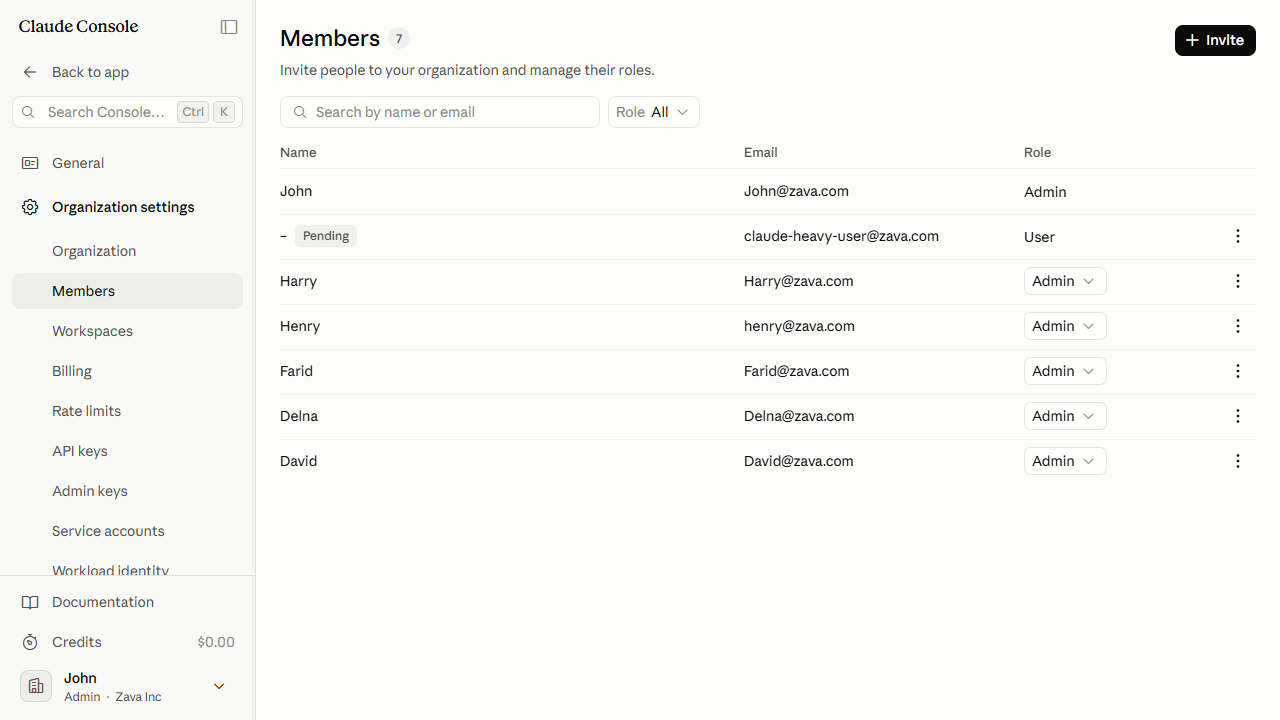
The Members page lists all current organization members with their names, emails, and roles.
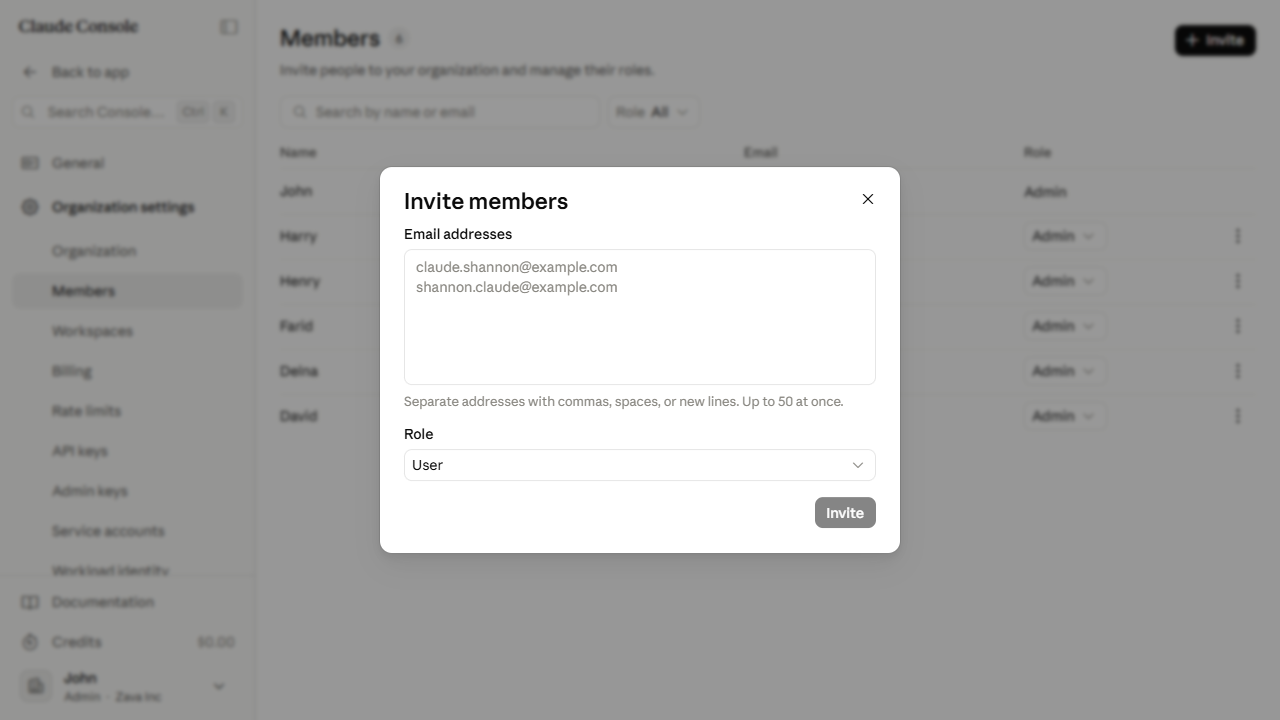
Click Invite in the top-right corner of the Members page.
The Invite members dialog opens with an email field and a role selector.
In the Email addresses field, enter the invitee's email address. To invite several people at once, separate addresses with commas, spaces, or new lines (up to 50 at a time).
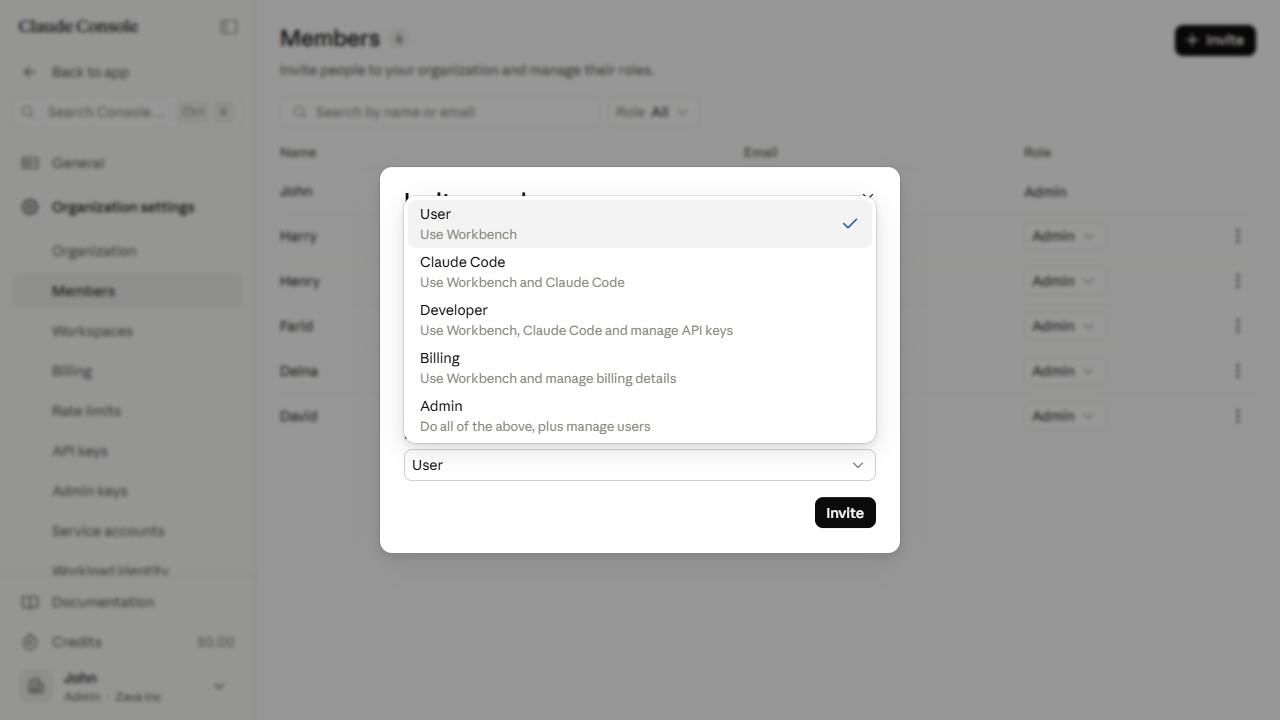
Click the Role dropdown and select the role the person needs:
User — Use Workbench.
Claude Code — Use Workbench and Claude Code.
Developer — Use Workbench, Claude Code, and manage API keys.
Billing — Use Workbench and manage billing details.
Admin — All of the above, plus manage members.
For most new members, keep the default User role.
Click Invite at the bottom of the dialog.
A "Sent 1 invite." confirmation appears. The invitee is added to the Members list with a Pending status and the role you assigned.
The invitee receives an email to join the organization. Their row shows Pending until they accept.
Best Practices for Inviting Members to the Claude Console
Assign the User role by default and grant a higher role only if the person's work requires broader access. Upgrading someone to a higher role later is simpler than reducing access after they have used it.
A pending invite counts against your plan's seat limit as soon as you send it, not when the person accepts. Before inviting a large group, check how many seats you have left.
Invites expire after 21 days. If an invitee has not accepted after several days, resend from the ⋮ menu on their Pending row before the invite expires.
Revoke pending invites for anyone who no longer needs access. A pending invite grants access the moment the recipient clicks Accept.
Invite Members to Claude Using Admin365
You can invite members to your Claude organization using Admin365. Admin365 gives you a dedicated Invite Management section to send member invites and track pending ones in one place.
Steps to Invite a Member to Claude Using Admin365
Log in to the Admin365 portal.
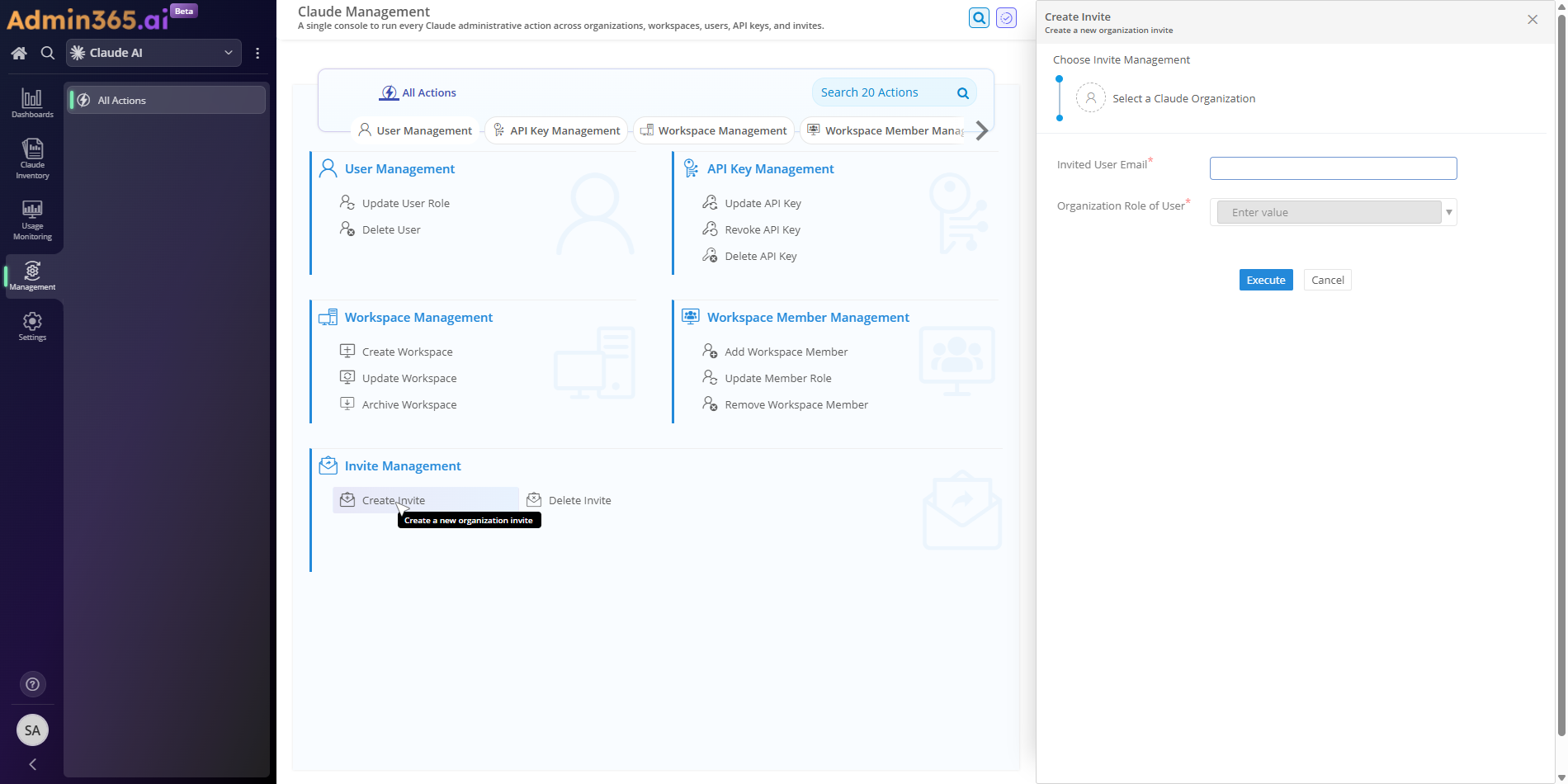
In Admin365, go to Management > Invite Management.
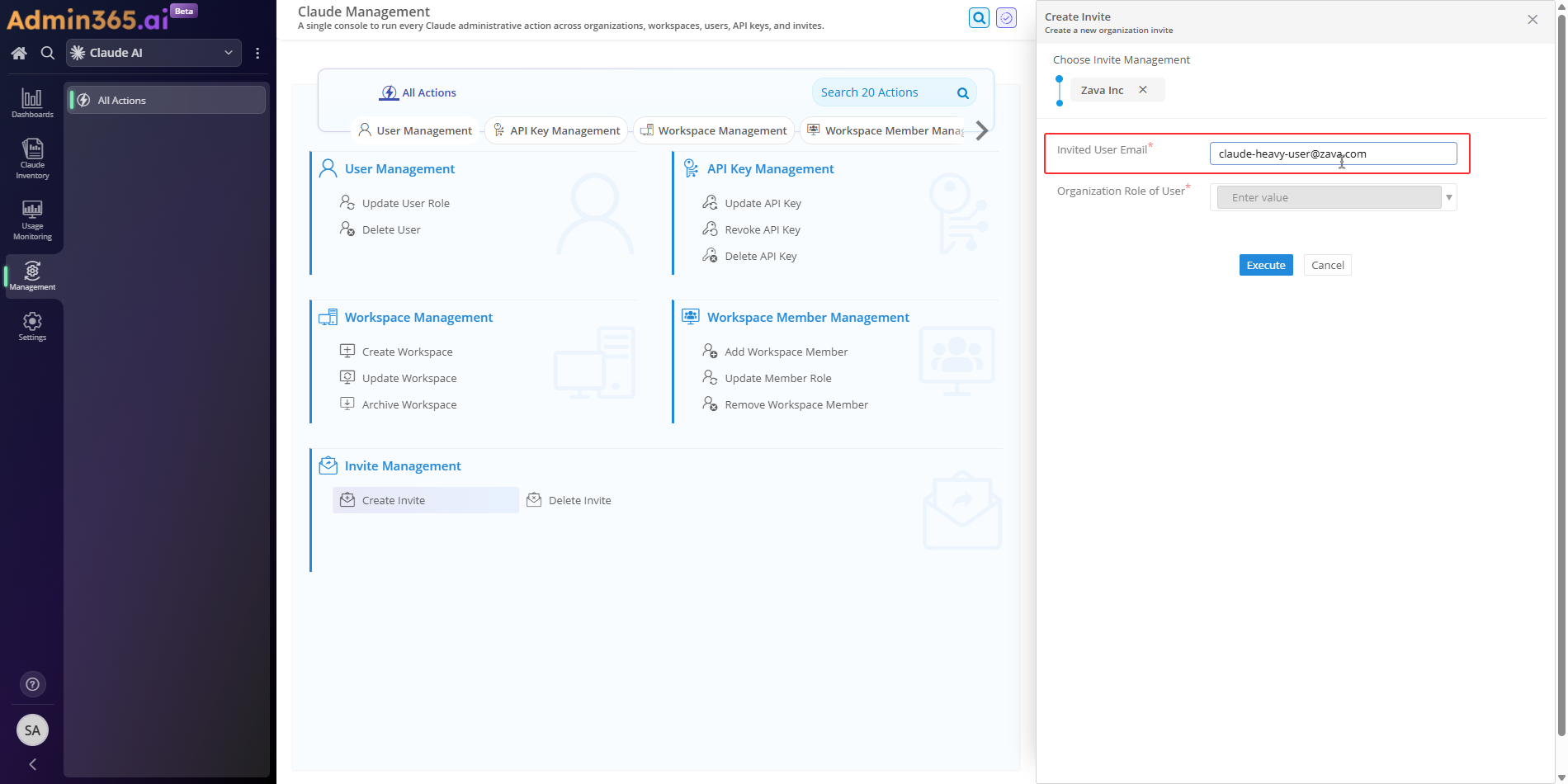
Click Create Invite.
In the Invited User Email field, enter the invitee's email address.
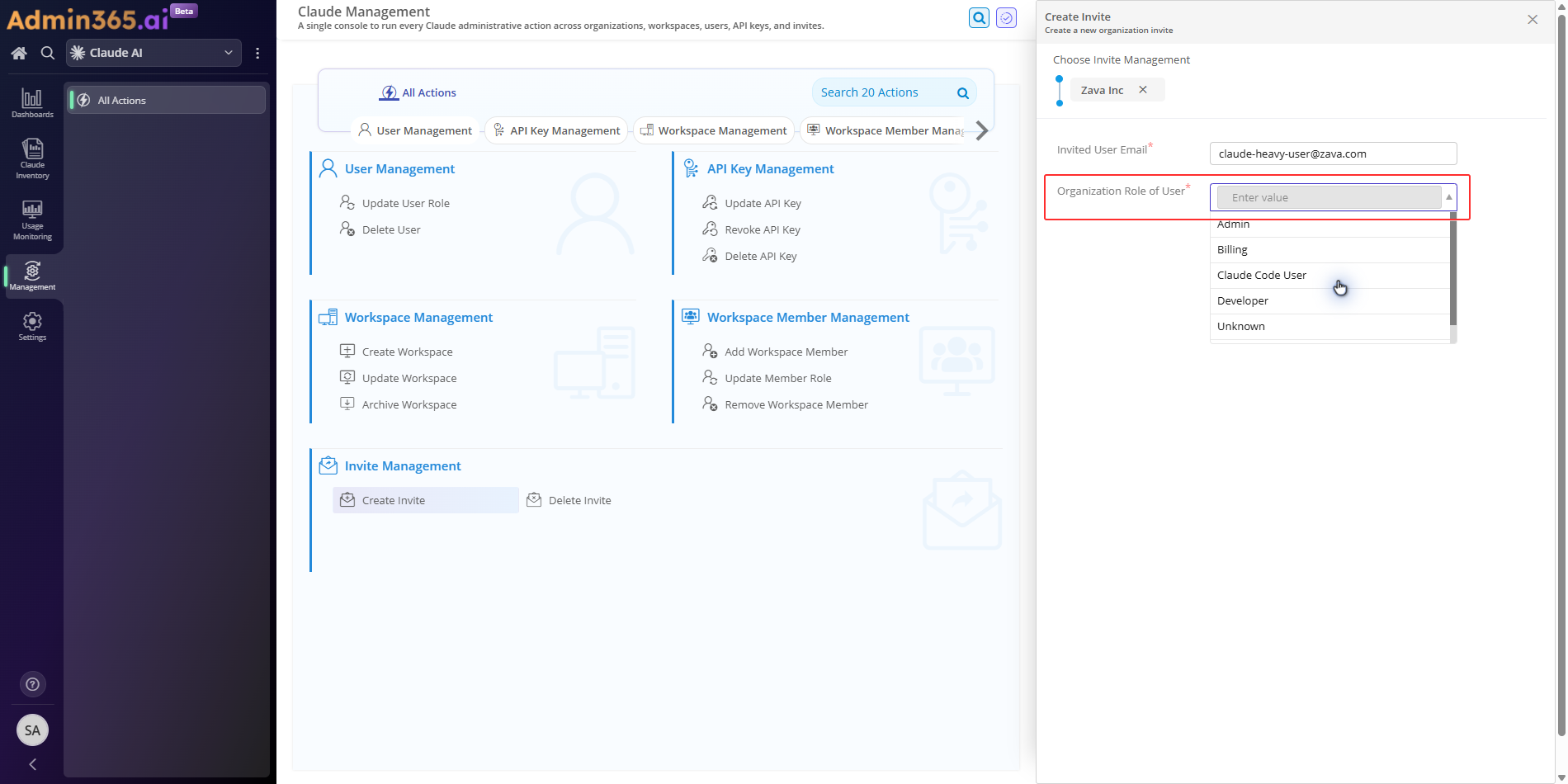
From the Organization Role of User dropdown, select the role that fits the person's access needs:
User — Access Workbench only.
Claude Code User — Access Workbench and Claude Code.
Developer — Access Workbench, Claude Code, and manage API keys.
Billing — Access Workbench and manage billing.
Admin — All of the above, plus manage members.
Select the least privileged role the person's work requires.
Click Execute to send the invite.
The invitee receives an email to join the organization. Their status shows as Pending in Invite Management until they accept.
Why Admin365 for Claude Member Invites
When you need to onboard several people to Claude at once, Admin365 helps in two ways.
Send invites in bulk. Admin365 lets you send invites to several members in one batch, so you don't create and send each invite one at a time.
Dedicated sections for managing and tracking invites. Invite Management handles sending and deleting invites, while a separate Reporting section tracks pending ones. Each task has its own place, so you can monitor both active and pending invites on the same portal.
Admin365 Best Practice for Inviting Members to Claude
Before sending a bulk invite batch, confirm your available member seats against your plan's limit. Each pending invite occupies a member seat as soon as you send it, so a large batch can push you past the limit before anyone accepts. Checking your remaining seat capacity first prevents overrun.
Common Errors When Inviting Members to the Claude Console
Invites to your Claude organization can fail at the API layer or the email delivery stage. Find the error text you see below and follow the resolution that applies to your situation.
Invalid Authentication Credentials Error When Inviting via Admin365
Error:
Invalid authentication credentials
What it means: The Claude Admin API key that Admin365 uses to create the invite is malformed, revoked, or expired.
Solution: Regenerate the organization's Admin API key in the Claude Console and paste it into Admin365's connection settings, taking care to remove any trailing space or line break.
Permission Error When Creating an Invite Through Admin365
Error:
Your API key does not have permission to use the specified resource.
What it means: The connected API key belongs to an account without the organization-admin rights that creating an invite requires.
Solution: Connect an API key created by an organization Admin in the Claude Console, then retry the invite from Admin365.
No Available Seats When Inviting a Member to Claude
Error:
No available seats of the selected type
What it means: Pending invites occupy seats immediately, so all seats of the selected type are already assigned (Team plans cap at 150 seats).
Solution: Purchase an additional seat when prompted, revoke an unused pending invite to free a seat, or upgrade the plan from Team to Enterprise.
Invite Expired After 21 Days in the Claude Console
Error:
Invitation expired
What it means: A Console invitation must be accepted within 21 days, after which it lapses automatically and the invitee can no longer join.
Solution: Open Settings > Members, find the person on the Pending tab, and resend the invite (or create a fresh invite in Admin365).
Invitation Email Not Received After Sending a Claude Console Invite
Reported error:
Invitation email not received
What it means: The invitation email was filtered into spam or blocked by corporate mail rules, or the invitee's address was mistyped.
Solution: Ask the invitee to check their spam folder and allowlist Anthropic mail, verify the address is correct, then resend the invite from the Pending row.
Manage Claude Member Invites with Admin365
Invite and track Claude member invites from a dedicated management console.