Someone leaves the company. Deleting them as a Claude user removes their access to every workspace and API key in your organization. Admins run this during offboarding or when a member's role no longer requires Claude access. Use it when you need to cut access across the whole organization, not just from a single workspace.
In this guide, we'll walk through two methods to delete a user in Claude:
You can delete a user from your Claude organization in the Anthropic Console. Use the Console when a member leaves and you need to revoke their access across every workspace in one action. You must be an organization Admin or Owner to remove members.
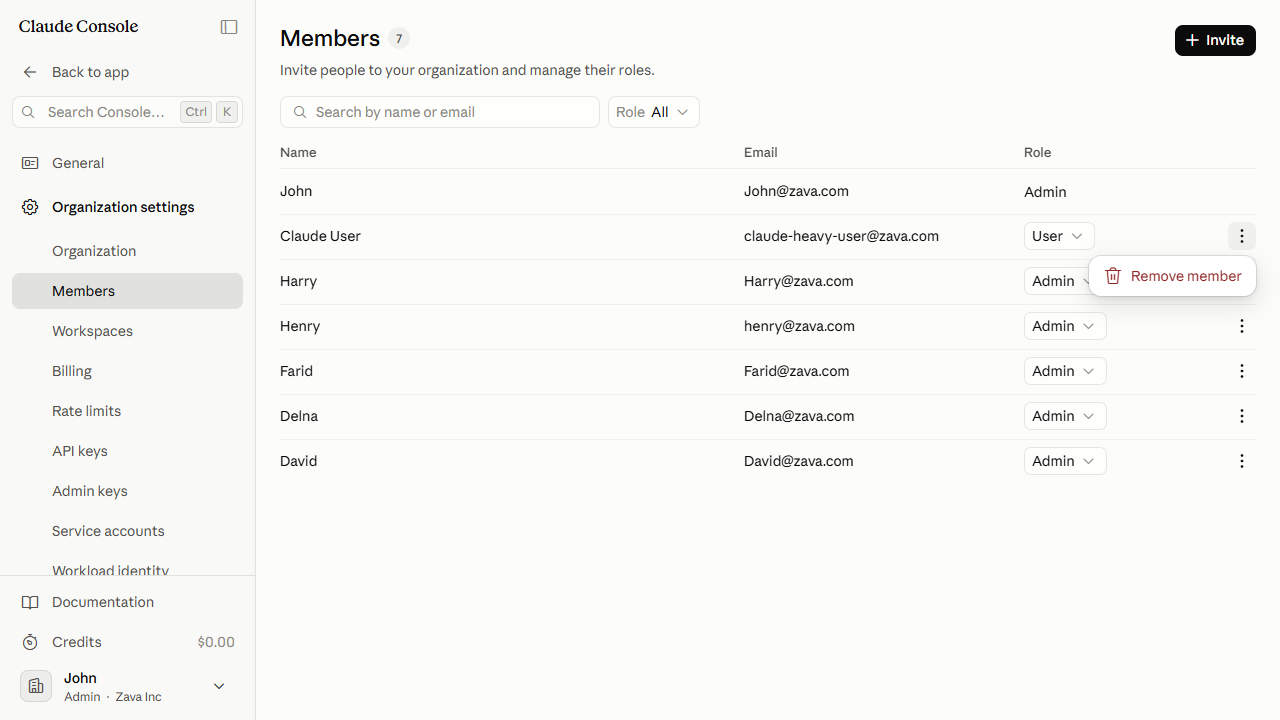
In the left sidebar, open Organization settings and select Members. The Members page lists everyone in your organization by name, email, and org role.
Find the member you want to remove. For large organizations, use the Search by name or email box at the top of the list.
At the right end of that member's row, click More actions (⋮), then click Remove member.
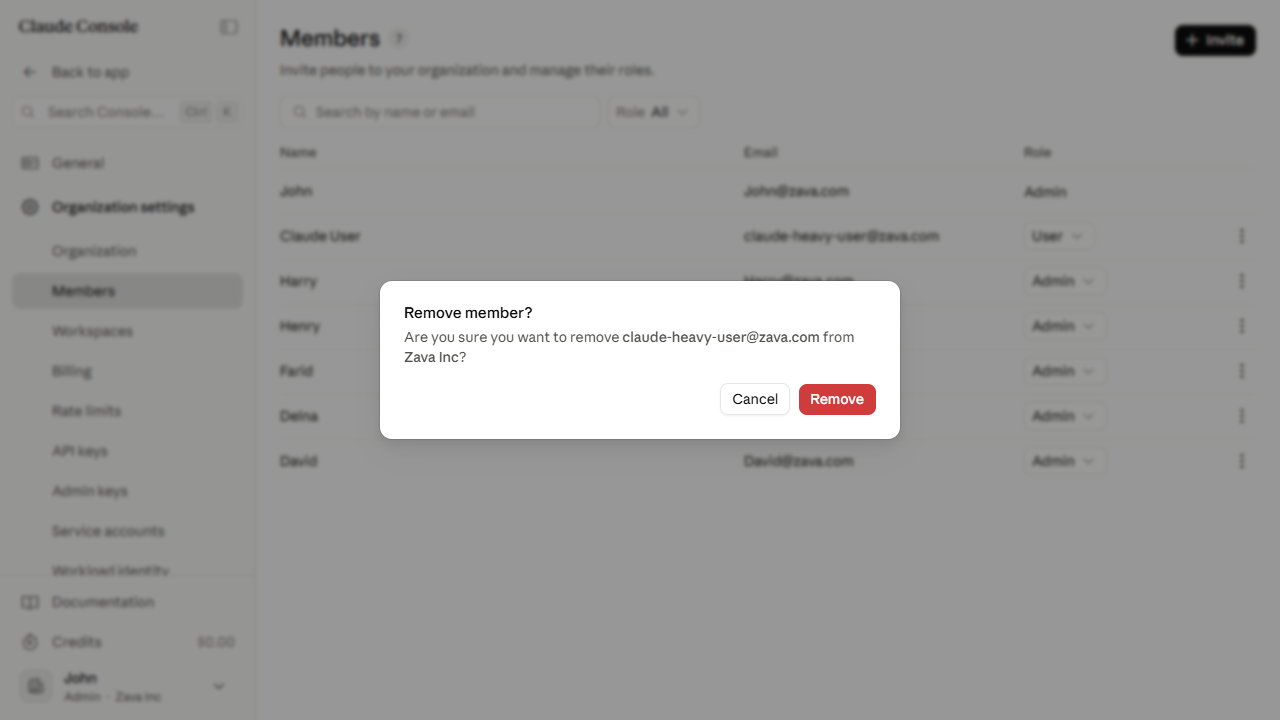
In the Remove member? dialog, verify the email address matches the right person, then click Remove.
The member is automatically removed from all workspaces in the organization once deleted.
Best Practices for Removing a Claude User During Offboarding
Confirm the target member before acting. You must be an Admin or Owner to remove members. You cannot remove yourself while you hold the Owner or Primary Owner role. Verify the role in the Members list before you start.
Remove members promptly at departure. Until you remove them, a departed member keeps full access to every workspace, API key, and organization setting.
Restoring access requires a new invite. There is no reinstate option. If you remove the wrong person, send a fresh invitation from the Invite button on the Members page.
Delete a Claude User Using Admin365
You can delete a user from your Claude organization in Admin365. Use Admin365 when you're offboarding a member and want a structured removal flow instead of deleting directly in the Console.
Steps to Delete a Claude User Using Admin365
Log in to the Admin365 portal.
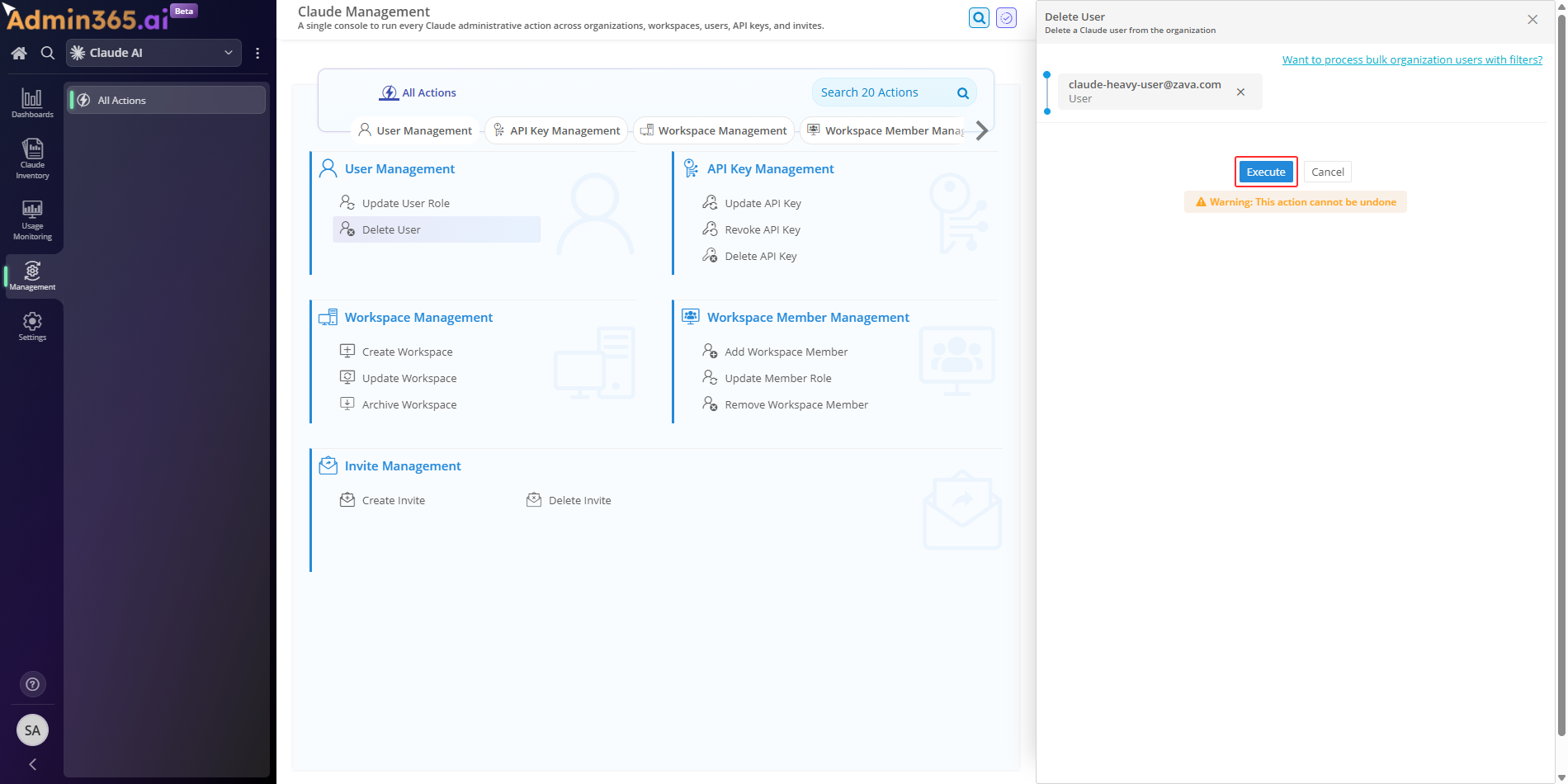
Navigate to Management > User Management > Delete User.
Enter the details of the member you want to remove from the organization.
Confirm the target member's details are correct, then click Execute.
Why Choose Admin365 to Manage and Delete Claude Users
An IT operator removing a departing member often wants to delegate offboarding to whoever runs it, without handing over Console access. Admin365 makes that possible.
Run the deletion through a delegated Admin365 role. The person handling offboarding doesn't need Owner or Admin access to the Claude Console.
Offboard several departing members in one click. Admin365 applies the same structured removal flow to each user, so bulk offboarding stays consistent.
Admin365 Tip for Deleting a Claude User
Admin365 logs every deletion in its reporting. After offboarding, open the deleted-users report to confirm the member was removed and to keep an audit trail of who left and when.
Common Errors When Deleting a Claude User
When you remove a user from your Claude organization using the Claude Console or Admin365, you may encounter permission errors, authentication failures, or role restrictions that block the removal. Find the error message you see in the sections below and follow the resolution.
Removal Is Immediate and Cannot Be Undone in the Claude Console
Error:
Remove member? Are you sure you want to remove [email] from [organization]?
What it means: The Console removes the member from the entire organization the moment you confirm, and there is no undo.
Solution: Verify the member's email in the "Remove member?" dialog before clicking Remove, and send a fresh invite if you need to restore access.
403 Permission Error When Removing a Claude User via Admin365
Error:
Your API key does not have permission to use the specified resource. Check your organization's access and workspace settings in the Claude Console.
What it means: The Admin API key Admin365 uses to reach your Claude organization lacks the write:members scope, so it cannot modify members.
Solution: Update or regenerate the Admin API key in the Claude Console so it includes the write:members scope, then confirm the organization access and retry the removal.
Cannot Remove an Owner, Admin, or Yourself From the Organization
Error:
You cannot remove yourself as a Primary Owner or Owner. Another Primary Owner or Owner must remove you from the team.
What it means: Admin permissions cannot remove the Owner, Admin, or Primary Owner roles, and no one can remove their own Owner or Primary Owner account.
Solution: Ask another Owner or Primary Owner to perform the removal, or reassign the member's role down to User or Developer first and then remove them.
401 Authentication Error From an Expired Admin365 API Key
Error:
There's an issue with your API key (for example, it's malformed, revoked, or expired).
What it means: The Admin API key Admin365 uses to reach your Claude organization was revoked or has expired, so member operations fail before they run.
Solution: Generate a new Admin API key in the Claude Console and update it in the Admin365 connection settings, then retry the removal.
403 Error: Acting Account No Longer a Member of the Organization
Reported error:
Account is no longer a member of the organization associated with this token
What it means: The credential used to manage members was revoked, the organization disabled its access, or the acting account was itself removed from the organization.
Solution: Re-authenticate with a valid account and confirm the acting identity is still an active organization member with Admin or Owner access before retrying.
Manage Claude Users at Scale with Admin365
Review and delete Claude users from Admin365 across your organization.