A Claude API key grants API access to your organization's models and workspaces. Revoke a key when it is compromised, handed off, or assigned to someone who has left. Access stops immediately. Any application still referencing the revoked key starts returning 401 errors right away. Check the key's recent usage first to confirm no live workload depends on it before you act.
In this guide, we'll walk through two methods to revoke a Claude API key:
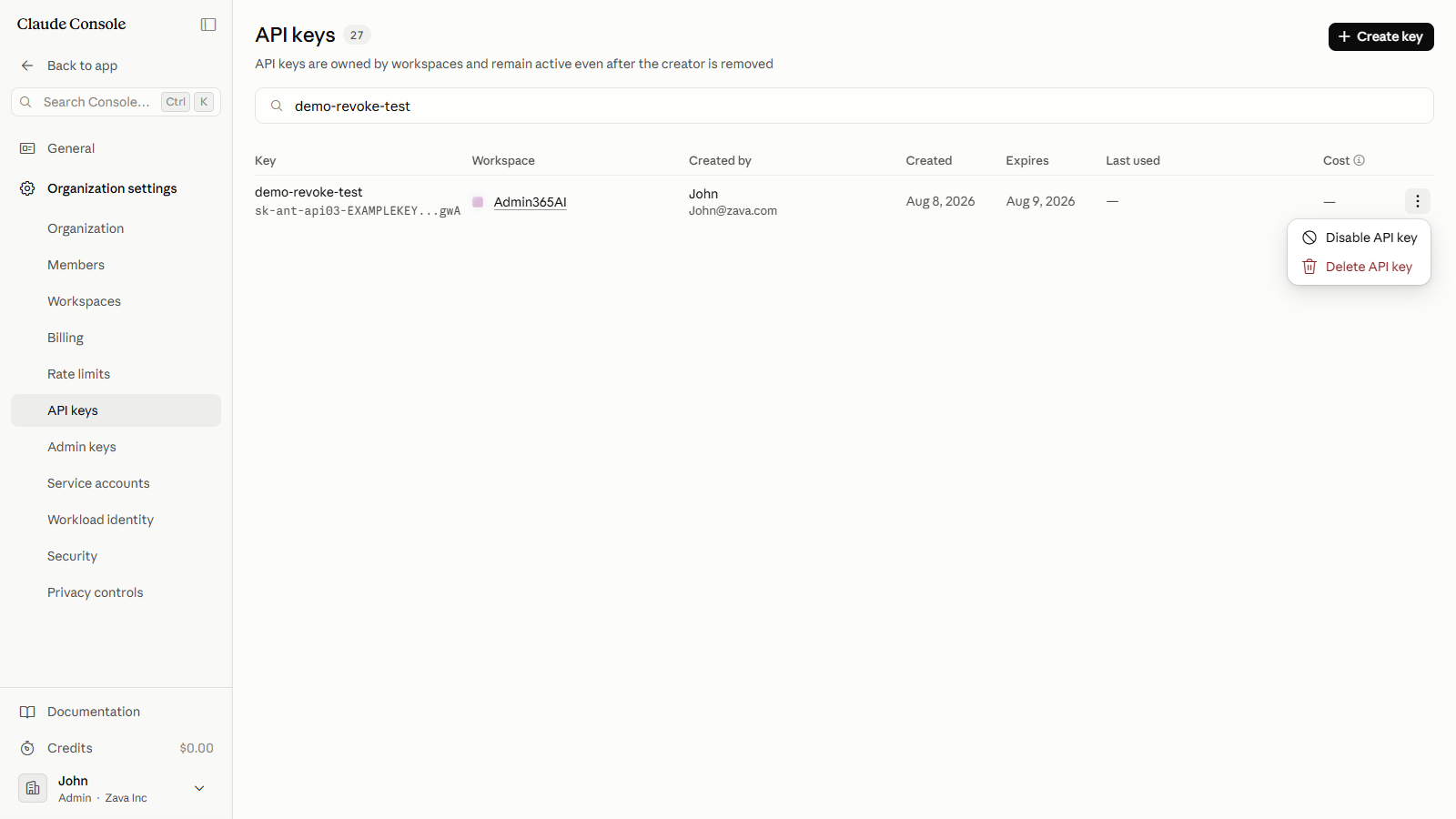
In the left sidebar, under Organization settings, click API keys. The API keys page lists every key in your organization, with its workspace, creator, creation date, expiry, and status.
In the Search keys box, type the key's name. On the matching row, confirm the name, workspace, and creator before continuing.
On the key's row, click the More actions button (⋮ at the far right of the row). A menu opens with two options: Disable API key and Delete API key.
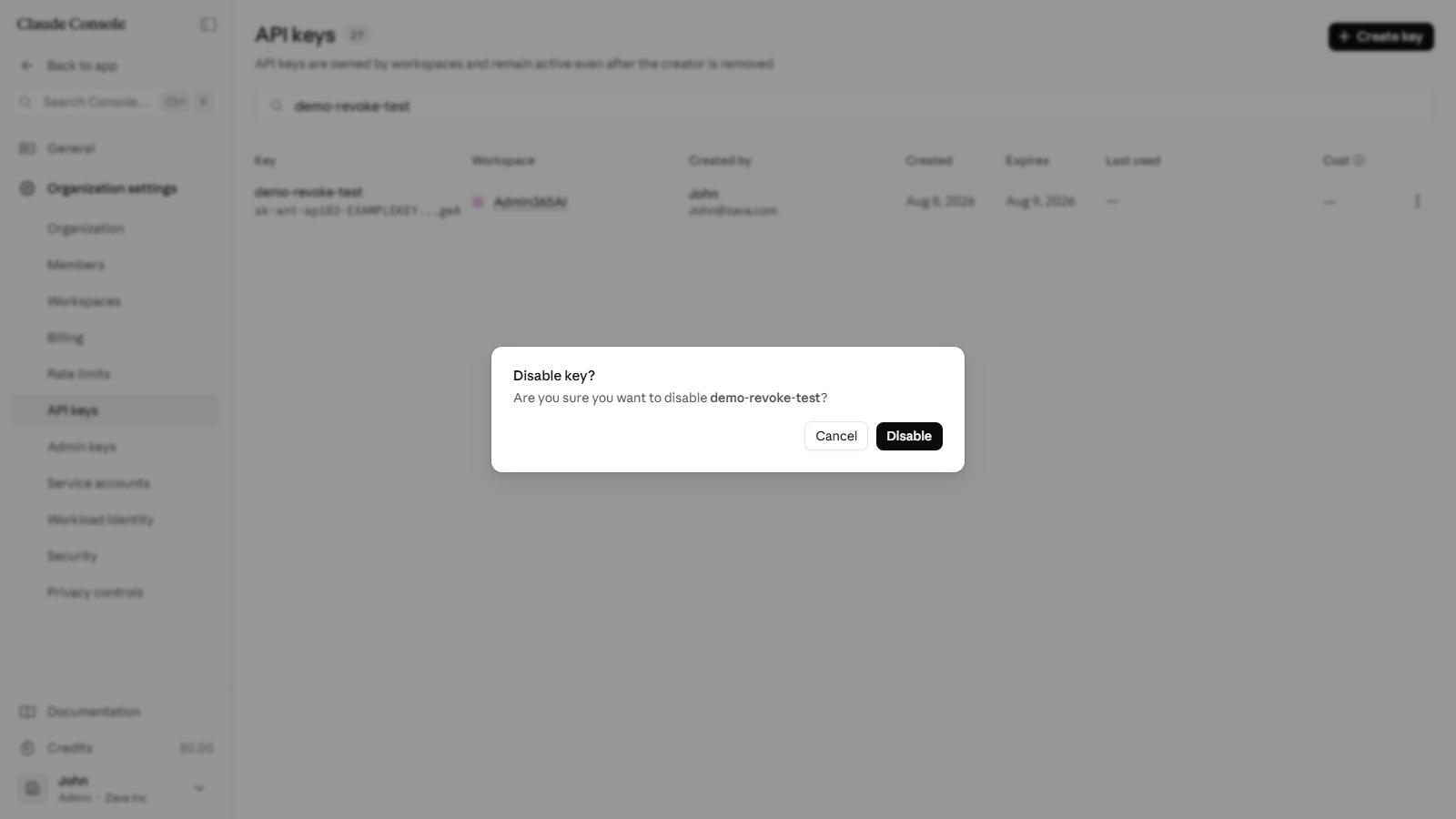
Click Disable API key. A Disable key? dialog opens and displays the key's name. To remove the key from the list permanently instead, click Delete API key. This is irreversible.
Confirm the dialog shows the correct key, then click Disable.
The key's row updates to show a Disabled badge. Once disabled, the key stops authenticating API requests immediately. It stays in the list. Use the More actions menu to re-enable or delete it later.
API Key Security Best Practices for Revoking in the Claude Console
Before disabling a key, confirm no live workload still references it. Any application using the key will start returning 401 errors the moment the key is disabled.
Use Disable rather than Delete when you are unsure of the impact. A disabled key can be re-enabled; a deleted key cannot.
After revoking a compromised key, generate a replacement immediately. Update your secrets manager or environment variable before redeploying any connected application.
Rotate keys every 30 to 90 days. Create a new key first, then disable the old one. This avoids any service gap during the switch.
Assign one key per application environment. Revoking a compromised production key leaves your development and staging environments unaffected.
How to Revoke a Claude API Key Using Admin365
You can revoke a Claude API key in Admin365. Use this when retiring a compromised or inactive key, or closing out API access during team offboarding.
Steps to Revoke a Claude API Key Using Admin365
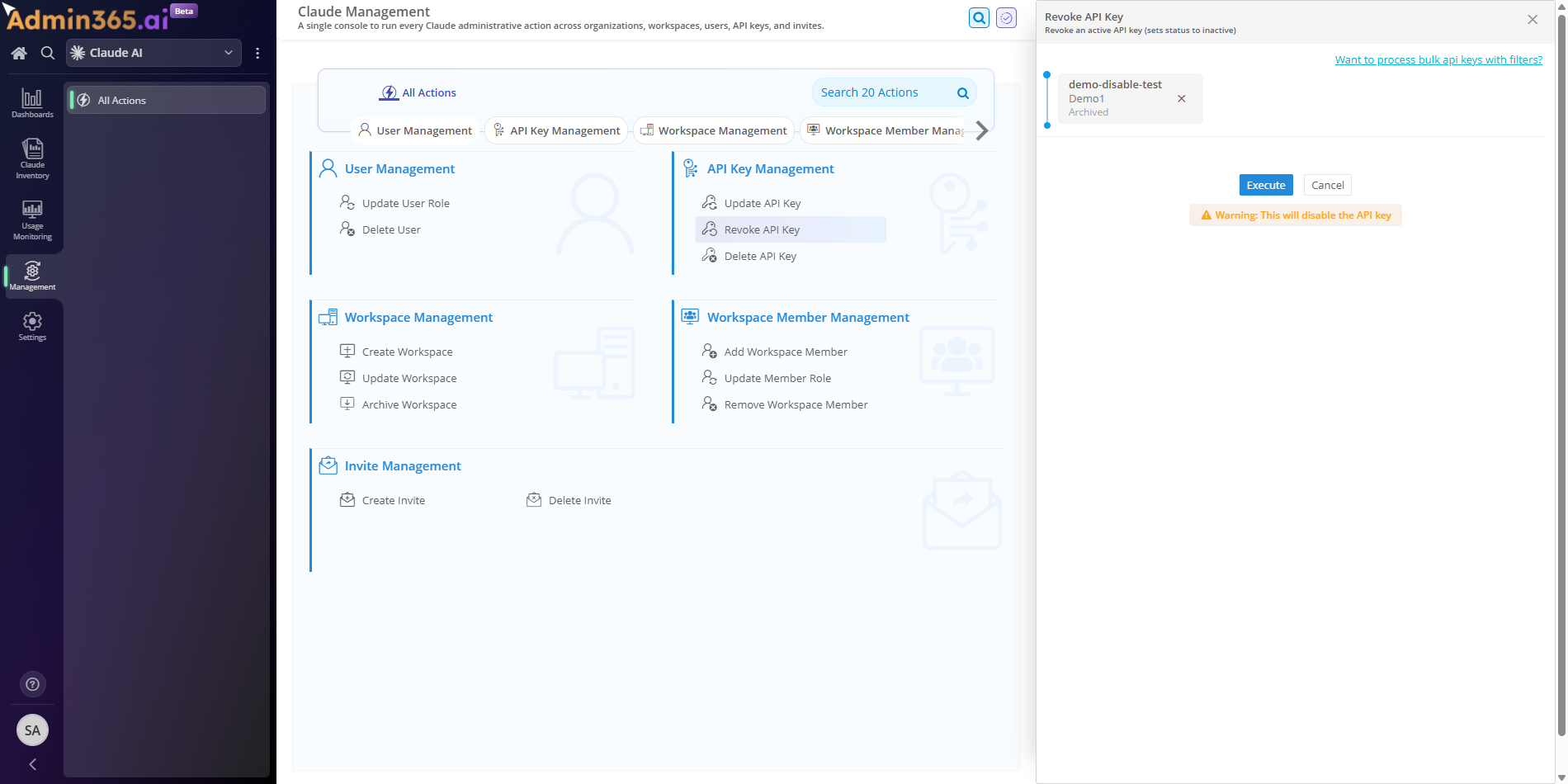
Log in to the Admin365 portal.
Navigate to Management → API Key Management → Revoke API Key.
Enter the details for the API key you want to revoke.
Review the action summary, then click Execute to revoke the key.
Why Admin365 for Claude API Key Management
After a security incident or team change, getting a compromised key revoked quickly matters. Admin365 makes revocation quick, so a compromised key stays active for less time.
Admin365 shows you which keys haven't been used as a dedicated report, so you can revoke old API keys before they pile up.
Every revocation is logged, so access changes stay auditable across organizations without requiring each team member to have direct portal access.
Admin365 Tip: Spot Stale Claude API Keys Before Revoking
An actively used key returns a 401 error on every request the moment it's revoked, with no additional warning.
Common Errors When Revoking a Claude API Key
Errors during API key revocation fall into two categories. Some involve finding the key in the Console. Others involve apps that still reference the revoked key. Match the error text you see to the entry below, then follow the resolution.
Can't Find the API Key to Revoke in the Claude Console
Error:
The API keys list returns no results for your search.
What it means: The keys list is filtered by the Search keys box and paginated, and a just-created key can lag a few seconds before it appears.
Solution: Clear the Search keys box and refresh the API keys page. Wait a moment, then re-type the exact key name to filter the full list.
401 Unauthorized Error After Revoking a Claude API Key
What it means: An app or the ANTHROPIC_API_KEY environment variable still references the key you revoked, so its next request fails authentication.
Solution: Create a replacement key in the Console. Update every app and secret store (including ANTHROPIC_API_KEY) to the new value, then clear any cached credentials.
403 Permission Error After Replacing a Revoked Claude API Key
Error:
{"type":"error","error":{"type":"permission_error","message":"Your API key does not have permission to use the specified resource."}}
What it means: The replacement key was not assigned to the same workspace as the revoked key, so calls that previously worked now lack access.
Solution: In the Console, assign the replacement key to the correct workspace. You can also use an organization-scoped key so it has permission to the resource.
Govern Claude API Keys with Admin365
Find and revoke stale Claude API keys across every workspace in one pass.