
Docs / Claude guides

How to Update a User Role in Claude

A Claude user's role determines what a member can access and manage across your organization's workspace. Each role controls a specific set of permissions, from managing API keys and billing to inviting other members. Updating a role when someone's duties change keeps those permissions aligned with what they actually handle.

In this guide, we'll walk through two methods to update a user role in Claude:

  • Change a user's role in the Claude Console
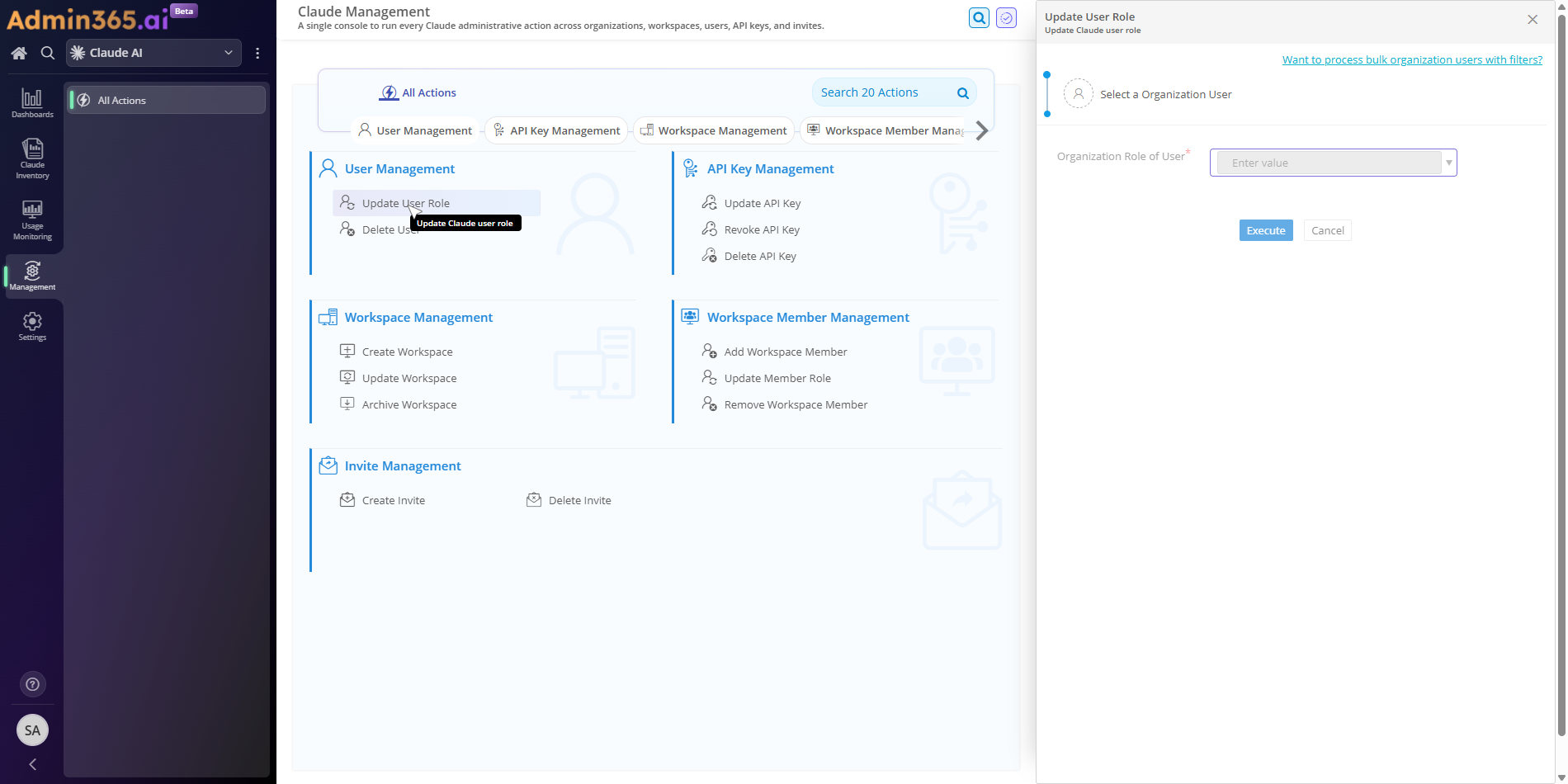
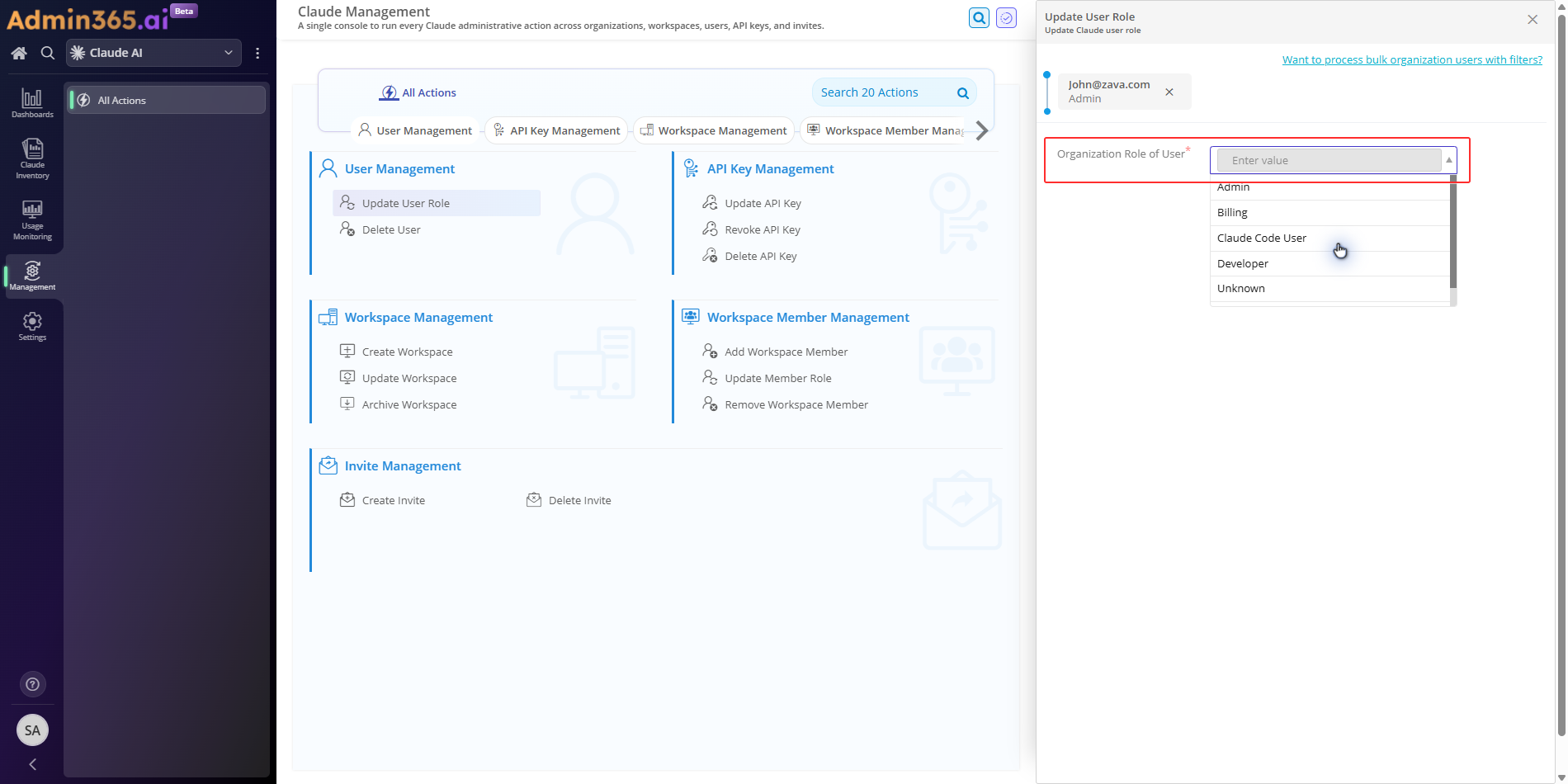
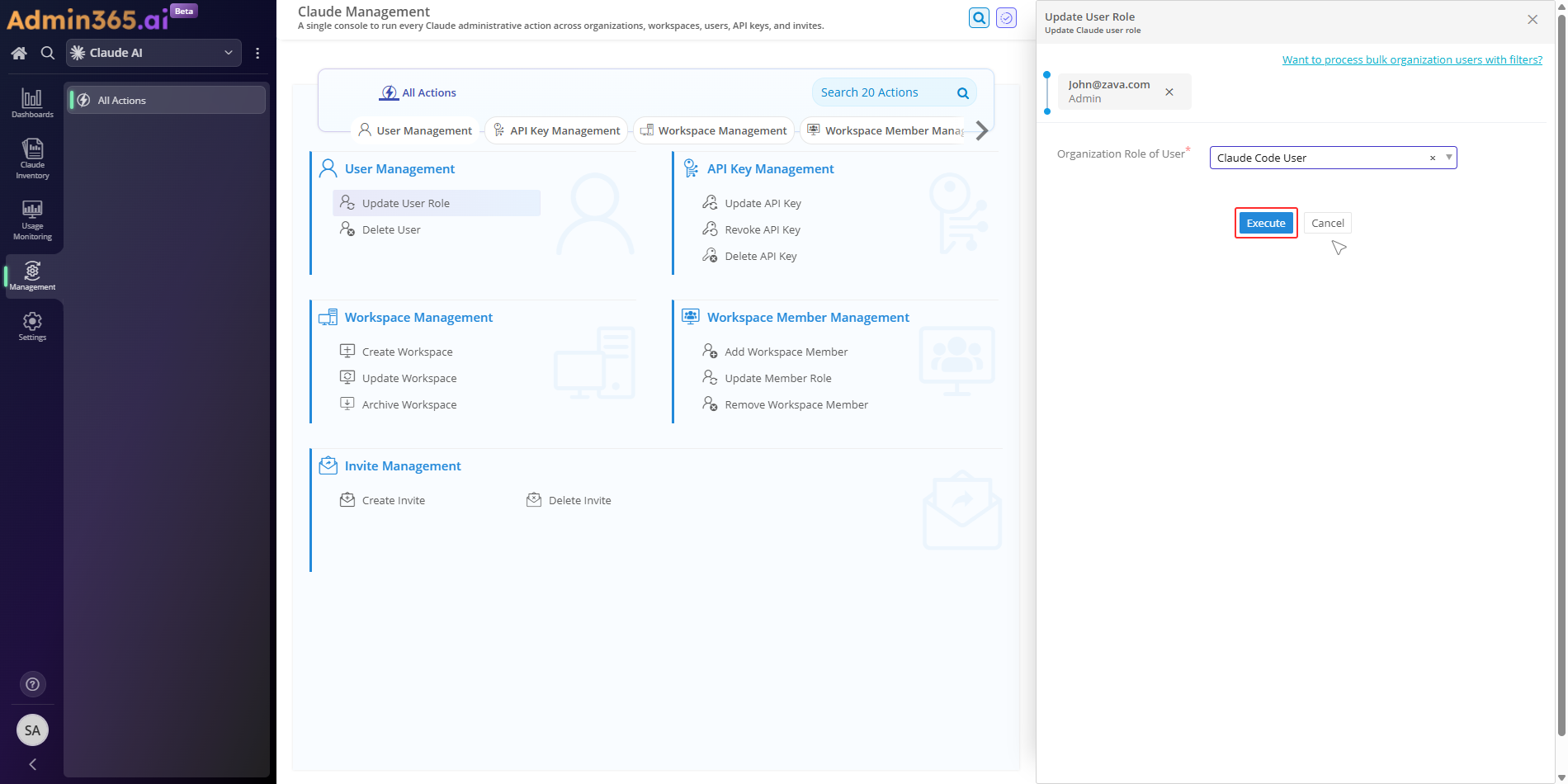
  • Update a Claude user's role using Admin365

Choose a method

Change a User's Role in the Claude Console

You can change a user's role in the Claude Console from the Members page. Use this method when you need to adjust an individual member's access level directly. You must be an organization Admin to change member roles.

Steps to Change a User's Role in the Claude Console

  1. Sign in to the Anthropic Console.

  2. In the left sidebar, go to Organization settings > Members.

  3. In the Members table, find the row for the member whose role you want to change. Use the Search by name or email field above the table to filter the list.

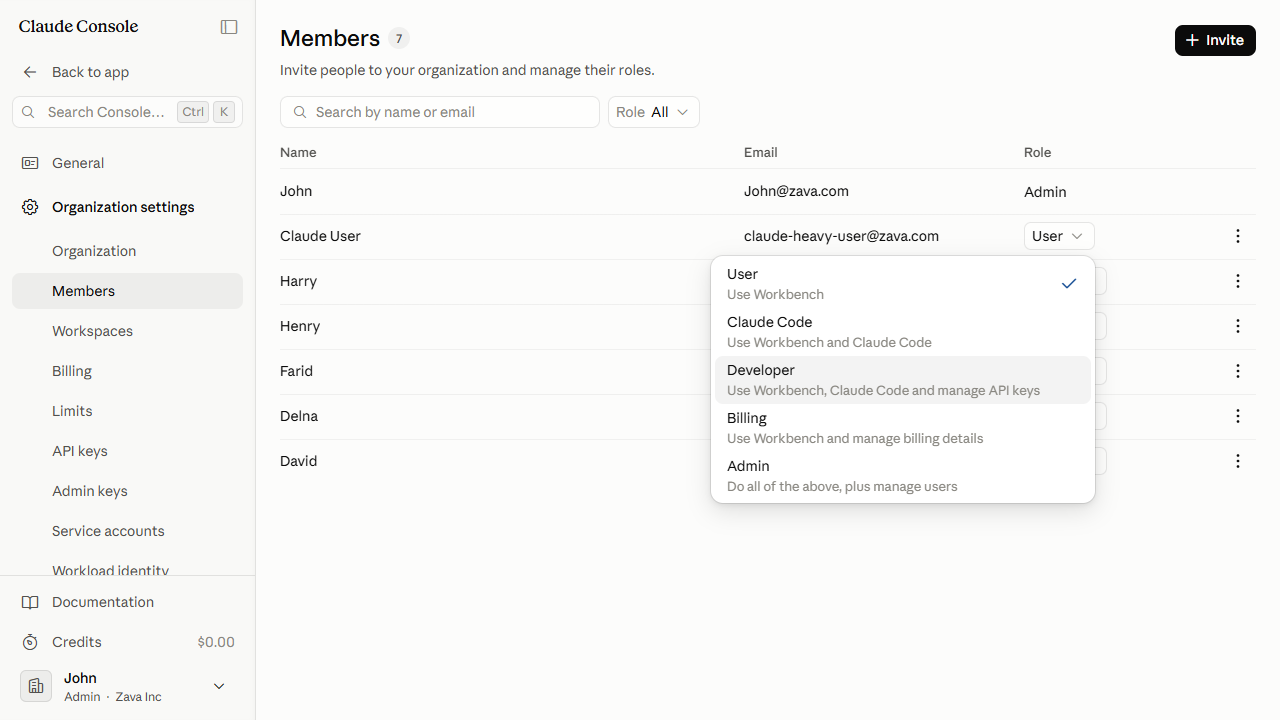
  4. In that member's row, click the Role dropdown. It shows the member's current role. The Console has six organization roles:

    • User — Use Workbench
    • Claude Code User — Use Workbench and Claude Code
    • Limited Developer — Use Workbench and Claude Code, and manage API keys
    • Developer — Everything Limited Developer can do, plus view session traces and download files
    • Billing — Use Workbench and manage billing details
    • Admin — Do all of the above, plus manage users
Role options dropdown on the Members page
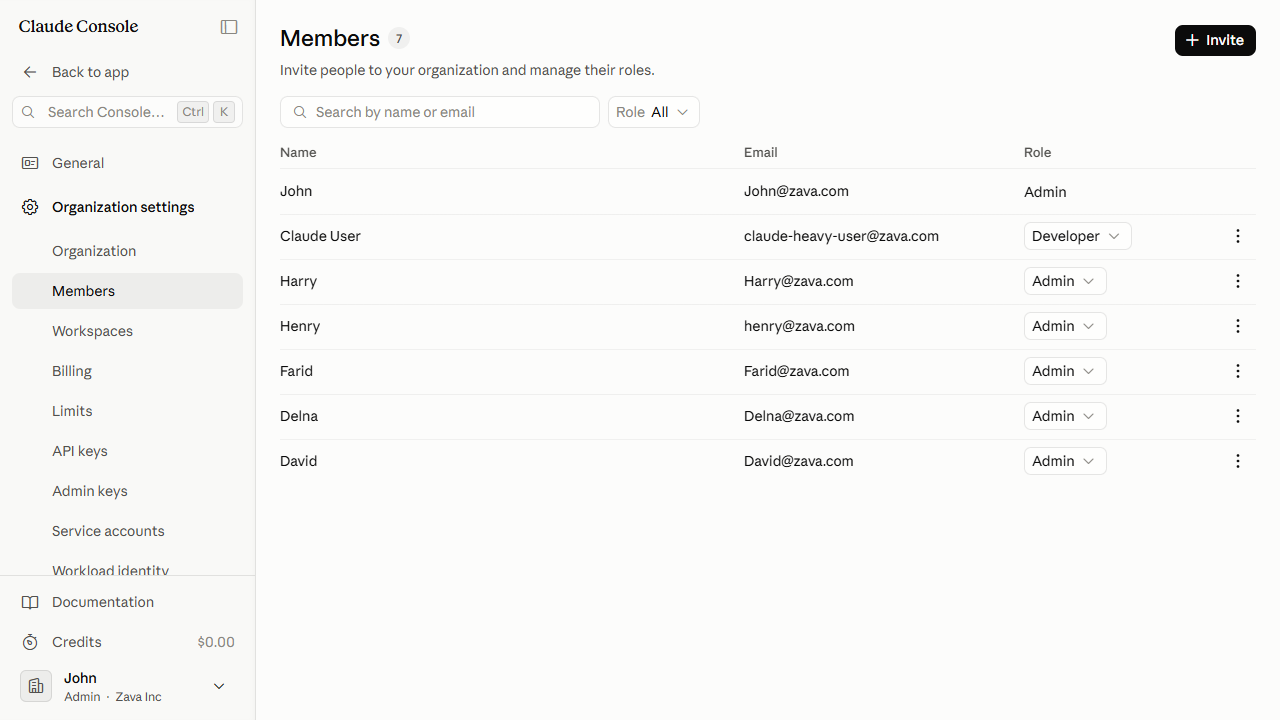
  1. Click the new role. The change appears to apply immediately. A brief confirmation message appears, and the Role column updates to show the new role.

Confirmation that the member's role has been updated

Best Practices for Assigning Claude User Roles with Least Privilege

  • Assign the minimum role that covers the member's actual work. A member who only needs Workbench access needs the User role, not Developer or Admin.
  • Review privileged role assignments periodically. Periodic access reviews catch stale Admin or Developer assignments before they create unnecessary exposure.
  • Limit how many members hold the Admin role. Admin can manage users and billing on top of full product access, so keeping that count less limits the damage if an account is compromised.

Common Errors When Updating a User Role in Claude

These errors occur when changing a member's role in a Claude organization through the Claude Console. Match the error text you see to the entry below, then follow the resolution steps.

403 Permission Error When Updating a Claude User's Role via Admin365

Error:

Your API key does not have permission to use the specified resource.

What it means: The account or Admin API key changing the role is not an organization Admin or Owner. Only Admins and Owners can update member roles.

Solution: Run the role change from an Owner or Admin account. If you use an Admin API key, confirm an Owner or Admin created it, then resend the request.

Cannot Assign the Admin or Owner Role When Changing a User's Role

Error:

Administrative roles cannot be assigned, and members holding an administrative role cannot be changed through this endpoint.

What it means: Only Owners and Primary Owners can grant or change administrative roles; Admins and the Admin API can set only non-administrative roles.

Solution: Ask an Owner or Primary Owner to assign the Admin or Owner role in claude.ai organization settings; from Admin365, target only User, Claude Code, Developer, or Billing.

Role Update Fails When SSO or SCIM Manages Your Organization's Roles

Error:

Role updates return 400 because your organization's identity provider manages roles (advanced SSO or advanced SCIM provisioning).

What it means: Your identity provider (advanced SSO or SCIM provisioning) owns member roles, so the change cannot be made through Admin365 or the Admin API.

Solution: Change the member's role in your identity provider instead, and let it sync back to the Claude organization.

401 Authentication Error From an Expired Admin365 API Key

Error:

There's an issue with your API key.

What it means: The Admin API key or OAuth token Admin365 uses to reach your Claude organization was revoked or has expired.

Solution: Generate a new Admin API key in the Claude Console and update it in the Admin365 connection settings, then run the role update again.

404 Not Found When the Target User ID Is Wrong

Error:

The requested resource could not be found.

What it means: The user_id sent with the role-update request does not match a current member of the organization.

Solution: Look up the member by email with the Admin API or in the Console Members list to get the correct user_id, then resend the update.

403 Error: Acting Account No Longer a Member of the Organization

Reported error:

Account is no longer a member of the organization associated with this token

What it means: The credential used to change the role was revoked, the organization disabled its access, or the acting account was itself removed from the organization.

Solution: Re-authenticate with a valid account that still belongs to the organization. Confirm this identity holds Admin or Owner access. Then submit the role update once more.


Manage Claude User Roles at Scale with Admin365

Change Claude user roles individually or in bulk, without Console admin access.

Download Admin365