A pending Claude invite stays open until the recipient accepts it or an admin revokes it. Revoking cancels the link on the spot, freeing the seat it was holding. Admins do this when a hire's start date shifts or an invite goes to the wrong address. Access reviews also surface pending invites worth clearing before they're accepted.
In this guide, we'll walk through two methods to revoke a pending Claude invite:
You can revoke a pending invite in the Anthropic Console. Use the Console when you need to cancel an outstanding invitation before the person joins your organization. You must be an organization Admin or Owner to revoke pending invites in the Claude Console.
Steps to Revoke a Pending Invite in the Claude Console
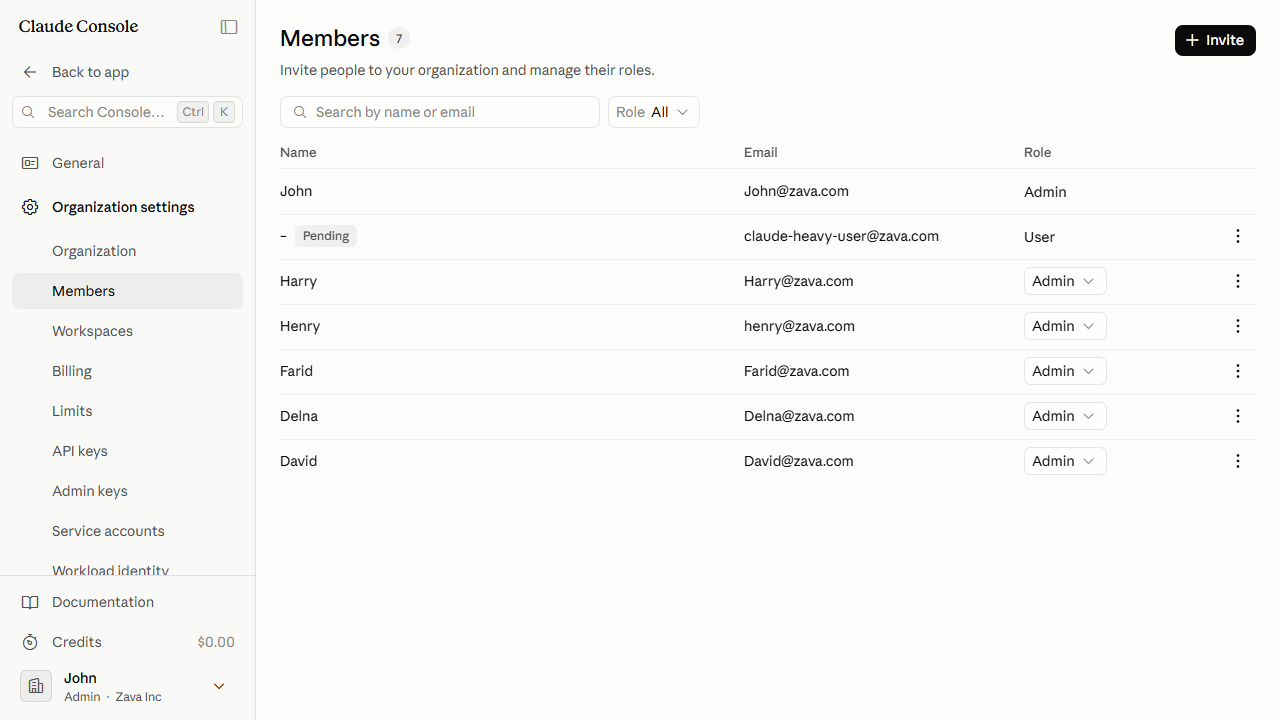
The Members page lists everyone in your organization. Pending invitations appear in the same table, marked with a Pending badge in the Name column.
Find the row for the invite you want to cancel. It shows the invitee's email address and a Pending badge instead of a name.
In that row, click the More actions button (⋮).
In the menu, click Revoke invitation.
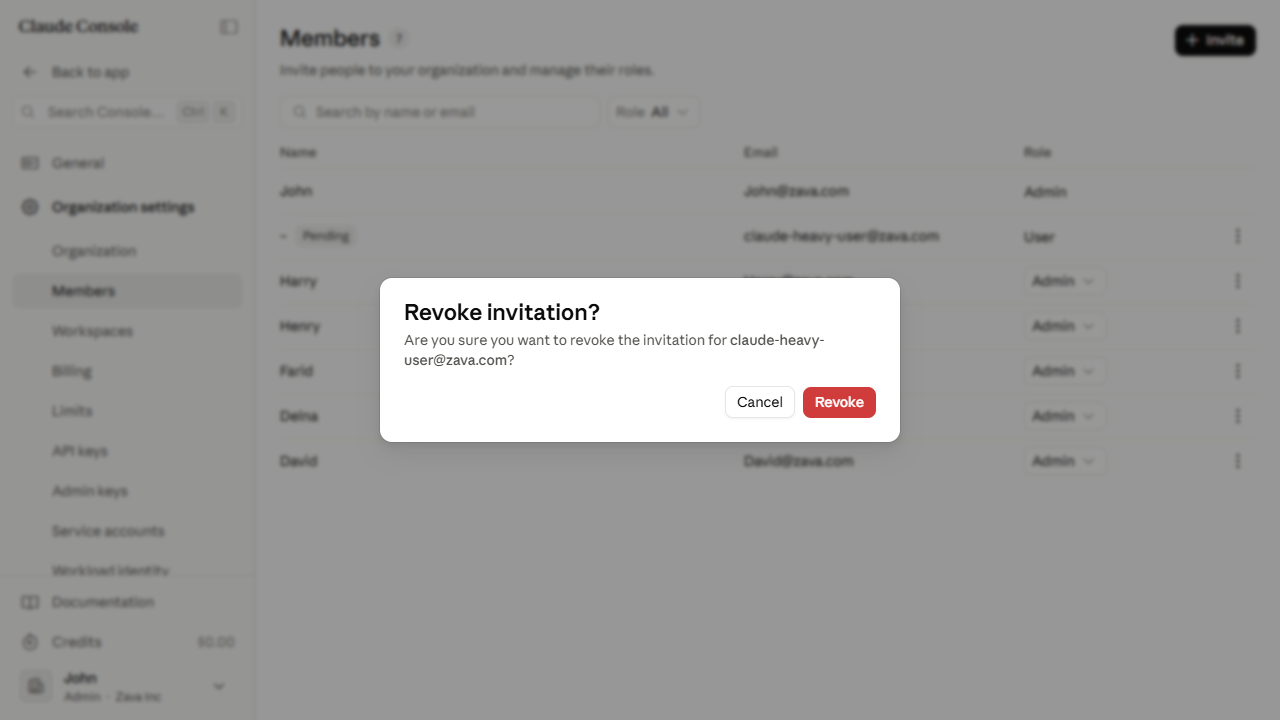
A Revoke invitation? dialog appears, naming the invitee's email address.
Click the Revoke button.
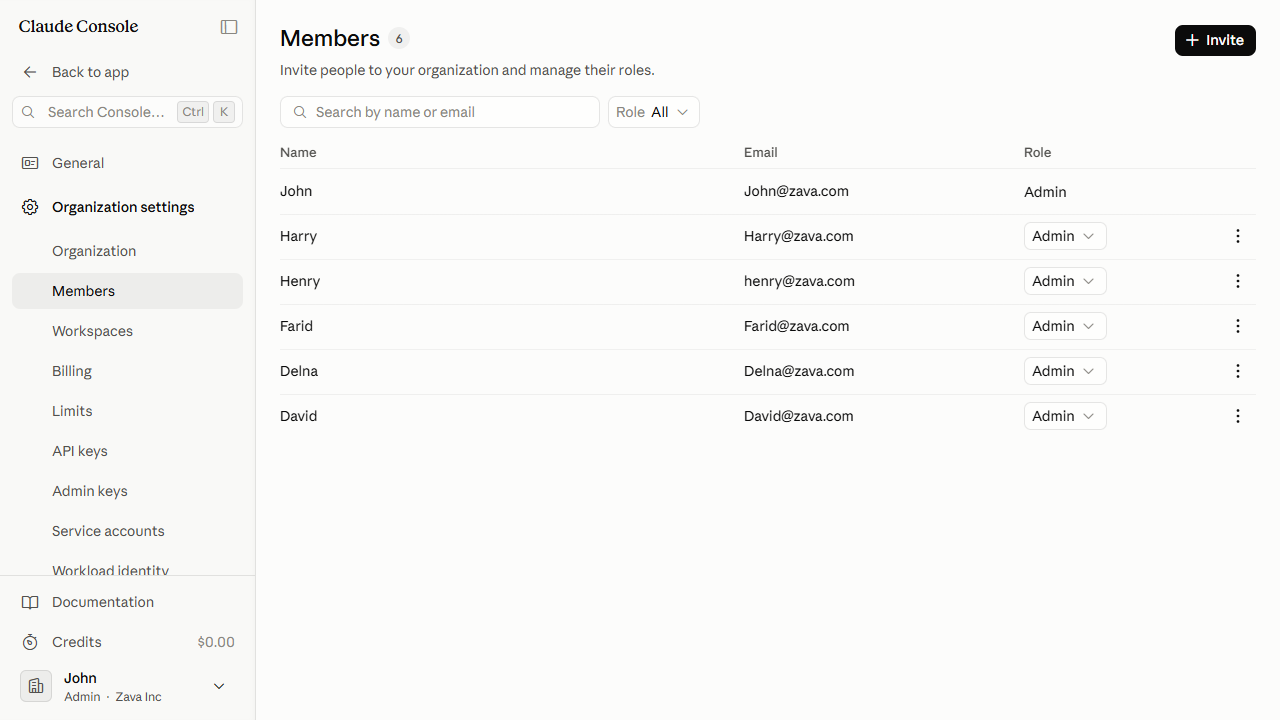
The dialog closes and a brief Invitation revoked confirmation appears. The pending row disappears from the Members table.
The invitee can no longer use that invite link to join the organization. If you revoked by mistake, send a fresh invite from the Invite button on the Members page.
Best Practices for Revoking a Pending Invite in the Claude Console
Confirm the invitee's email in the Revoke invitation? dialog before clicking Revoke. The revocation is immediate and cannot be undone.
Revoking a pending invite frees the seat it was holding. If your plan has a member limit, clearing stale invites makes room without an upgrade.
Invites expire after 21 days. Revoking stale ones proactively keeps the Members table clean and your seat count accurate.
A revoked invite cannot be restored. If the person still needs access, send a fresh invite from the Invite button after revoking.
Revoke a Claude Invite Using Admin365
You can revoke a pending Claude invite in Admin365. Use this when cancelling an outstanding invitation is part of an offboarding or access-control workflow. Admin365 handles the revocation without requiring a manual Console login for each invite.
Steps to Revoke a Pending Invite in Admin365
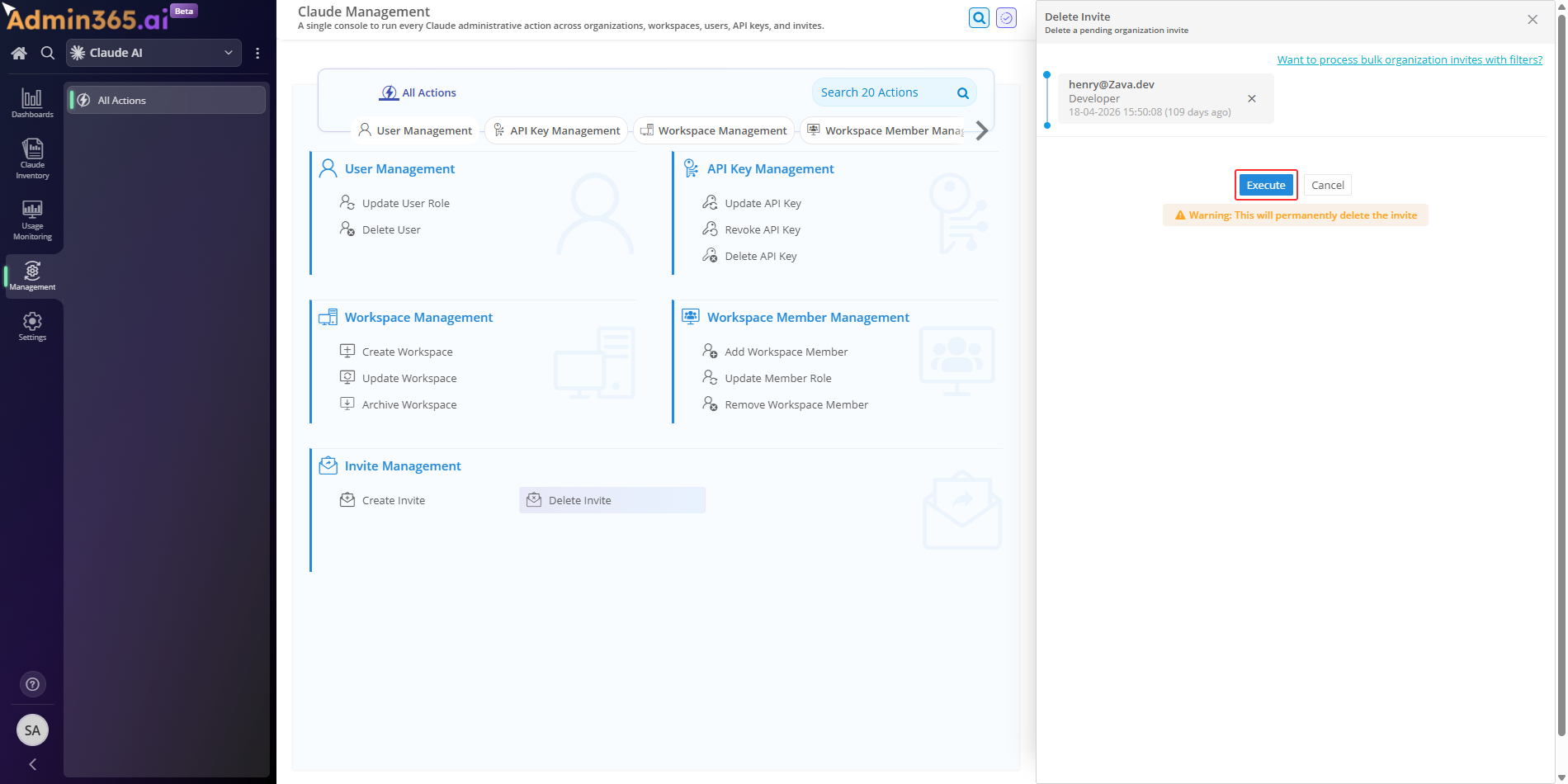
Open Admin365. In the navigation panel, go to Management > Invite Management > Delete Invite. The Delete Invite panel will open.
Enter the invite you want to revoke. Type the invitee's email address or invite ID.
Review the fields, then click Execute to revoke the invite.
The pending invite is removed. The invitee can no longer use that link to join the organization.
Why Admin365 for Revoking Claude Invites
An offboarding run or an access-review sweep can leave dozens of pending invites to clear. Admin365 addresses them through a dedicated Invite Management panel with fields where you enter the invite details.
Surface the pending invites you need to clear from an Admin365 report collection, then revoke each one through the dedicated Delete Invite action.
Target a specific invitation by entering its invitee email or invite ID in the Delete Invite action, so Admin365 scopes each revocation to exactly the invite you name.
The Admin365 panel shows the invite details you entered before anything happens. Delete Invite is treated as a destructive action, so nothing is revoked until you click Execute.
Admin365 Best Practice for Revoking Claude Invites
If the invitee already accepted and appears as an active member, Delete Invite has no pending target. Check the member's current status first. For accepted members, use the Remove Member action from Workspace Member Management instead.
Common Errors When Revoking a Claude Console Invite
When revoking a pending Claude invite through the Console or through Admin365, a few predictable errors can surface. Match the error text you see to an entry below, then follow the resolution.
Revoke Confirmation Prompt in the Claude Console
Error:
Are you sure you want to revoke the invitation for {email}?
What it means: Revoking a pending invite is a destructive action, so the Console requires you to confirm before it cancels the invitation.
Solution: Confirm the dialog names the correct invitee's email, then click the red Revoke button; a revoked invite cannot be restored, so send a fresh invite if you revoke one by mistake.
404 Not Found Error When Deleting a Claude Invite via Admin365
Error:
The requested resource could not be found.
What it means: The invite_id no longer matches a pending invite because the invitation was already accepted, already revoked, or the wrong ID was used.
Solution: Refresh the pending invite list to obtain a current invite_id; if the person already accepted, remove them as an active member instead of revoking the invite.
Permission Error Deleting a Claude Invite Without an Admin Key
Error:
Your API key does not have permission to use the specified resource.
What it means: Deleting an invite requires admin-level access. The request used a regular API key instead of an Admin API key or an org:admin OAuth token.
Solution: Have an organization admin create an Admin API key (starting with sk-ant-admin) or obtain an org:admin OAuth token, then configure Admin365 to use it.
Authentication Error From an Expired Admin API Key
Error:
There's an issue with your API key.
What it means: The Admin API key or OAuth token used to manage invites is malformed, revoked, or expired.
Solution: Regenerate the Admin API key in the Claude Console (or refresh the org:admin OAuth token), then update the stored credential in Admin365.
Manage Claude Member Invites with Admin365
Revoke pending Claude invites and manage member access from one Admin365 panel.